

Overview
Email Notifications allows you to manage how Documents are shared with recipients through email. It brings together your email sender accounts and email templates, giving you control over the email address used to send Documents and the messaging recipients receive.
Sender overview
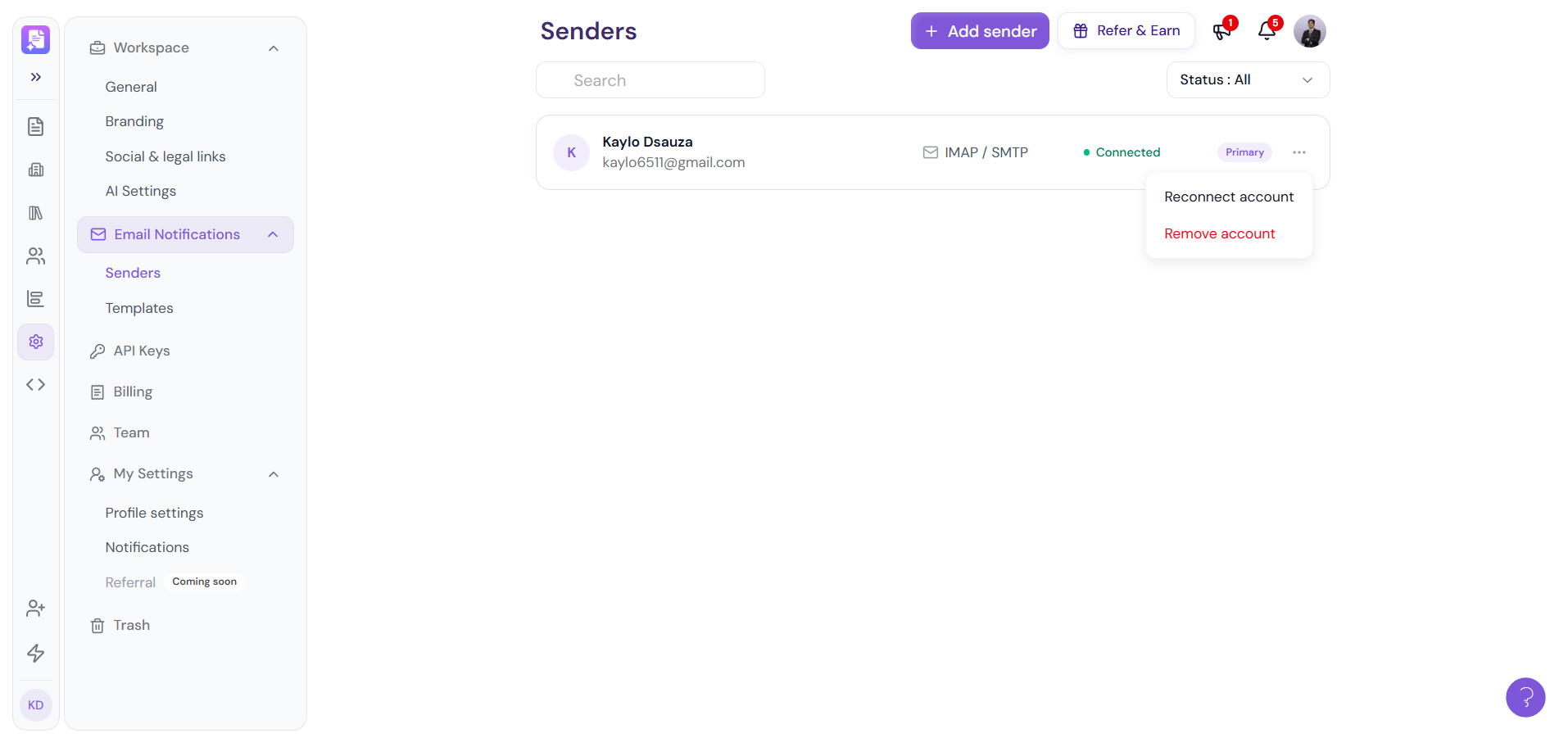
The Senders module allows you to connect and manage the email accounts used to send Documents from your own email address.
Instead of sending Documents from a generic platform email address, connected senders allow emails to be delivered using your business or personal work email. Replies from recipients are delivered directly to the connected email inbox.
What You Can Manage
With Senders, you can:
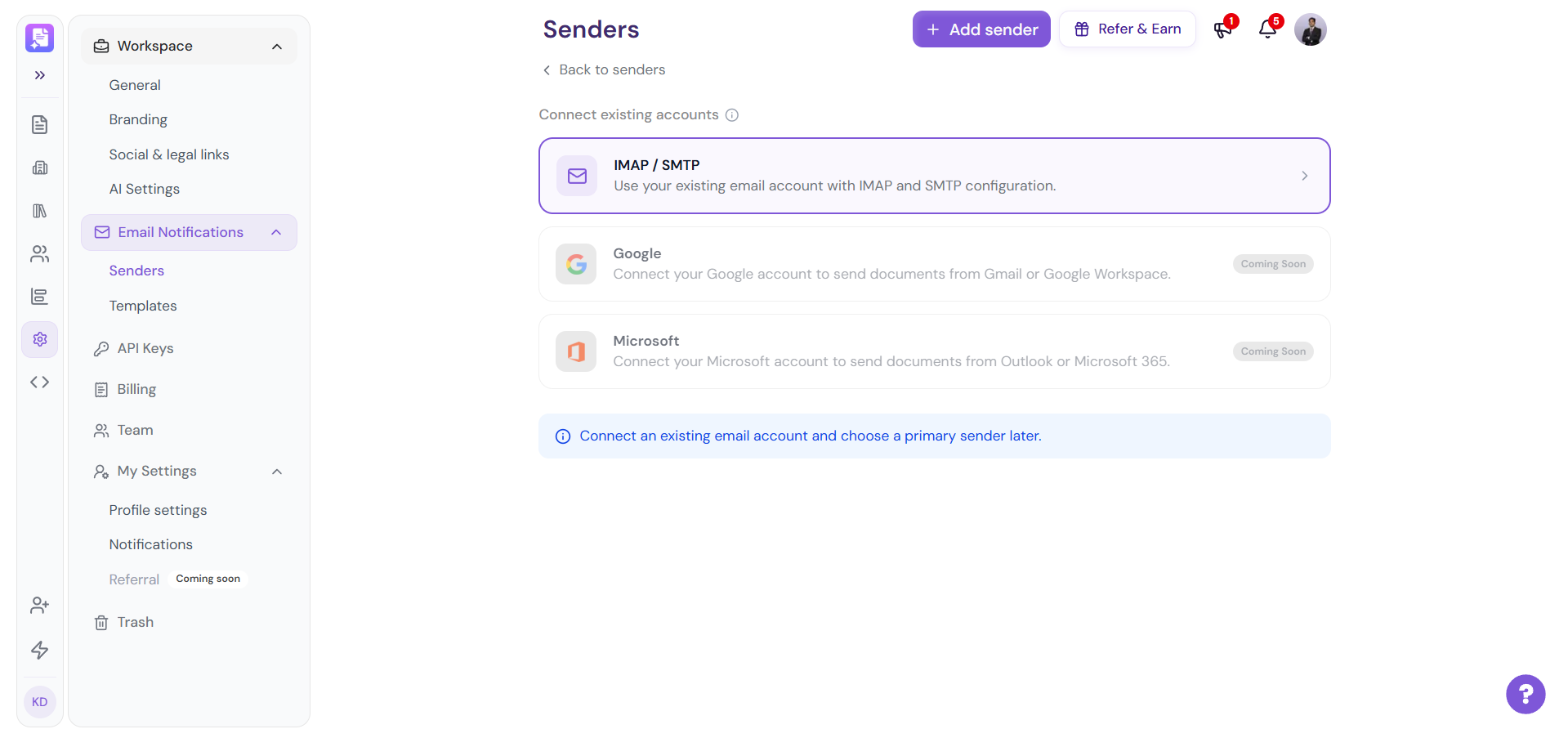
Connect an existing email account using IMAP / SMTP.
Add multiple email accounts.
Set an email account as the Primary sender.
Change the Primary sender whenever required.
Reconnect an account when its email credentials or connection settings change.
Remove a connected email account.
Select a connected sender when sending a Document.
Email Connection
IMAP / SMTP allows you to connect an existing business or custom-domain email account using its incoming and outgoing mail server configuration.
Common email providers supported through IMAP / SMTP include:
Google Workspace / Gmail
Microsoft 365 / Outlook
Zoho Mail
Hostinger
Custom business email accounts
Google and Microsoft account connections are shown as separate options in the Senders interface and are marked as Coming Soon in the current experience.
Quick Settings for Popular Email Providers
If you're wondering what settings or passwords to use, check this quick cheat sheet:
Email Provider |
Incoming (IMAP) |
Outgoing (SMTP) |
Resource link |
|---|---|---|---|
Google / Gmail |
imap.gmail.com (Port 993) |
smtp.gmail.com (Port 465 or 587) |
|
Microsoft 365 / Outlook |
outlook.office365.com (Port 993) |
smtp.office365.com (Port 587) |
|
Zoho Mail |
imappro.zoho.com (Port 993) |
smtppro.zoho.com (Port 465 or 587) |
|
Hostinger |
imap.hostinger.com (Port 993) |
smtp.hostinger.com (Port 465) |
Email Templates Overview
Customize the emails sent when sharing Documents with recipients.
The Templates module allows you to create and manage the default email content used for different Document-sharing scenarios.
You can customize:
Subject line
Email message
Buttons
Dynamic variables that automatically insert Document and recipient information
Available Templates
Send Document
Used when a Document is shared directly with a recipient.
Public Share Link
Used when a public Document link is shared with someone.
💡 Pro Tip: Connect your work email and customize your email templates once to create a consistent, professional sending experience. Set your preferred Primary Sender and use Smart Fill-in Placeholders to automatically personalize every Document email.