

Setting Up Two-Factor Authentication (2FA)
Overview
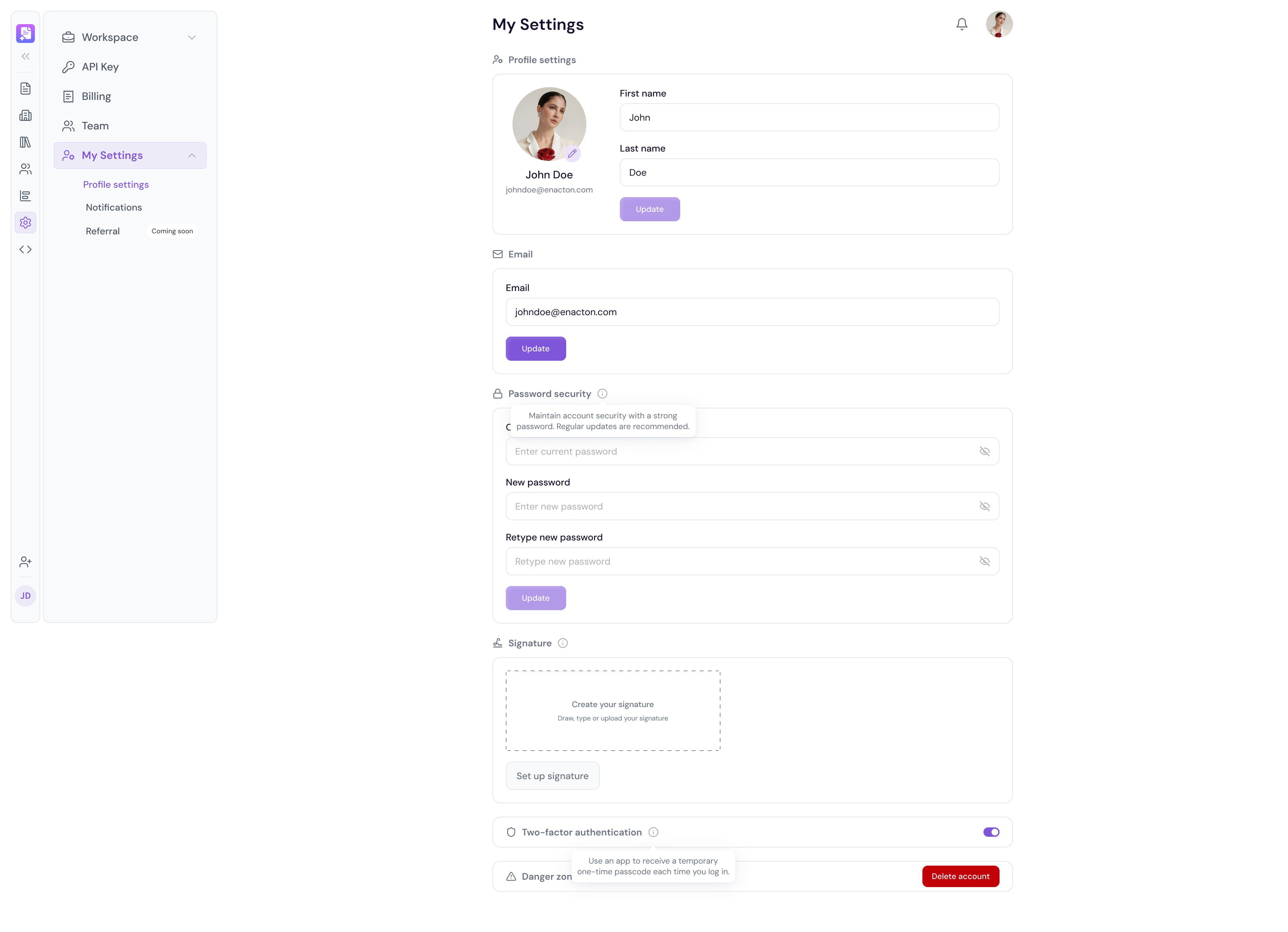
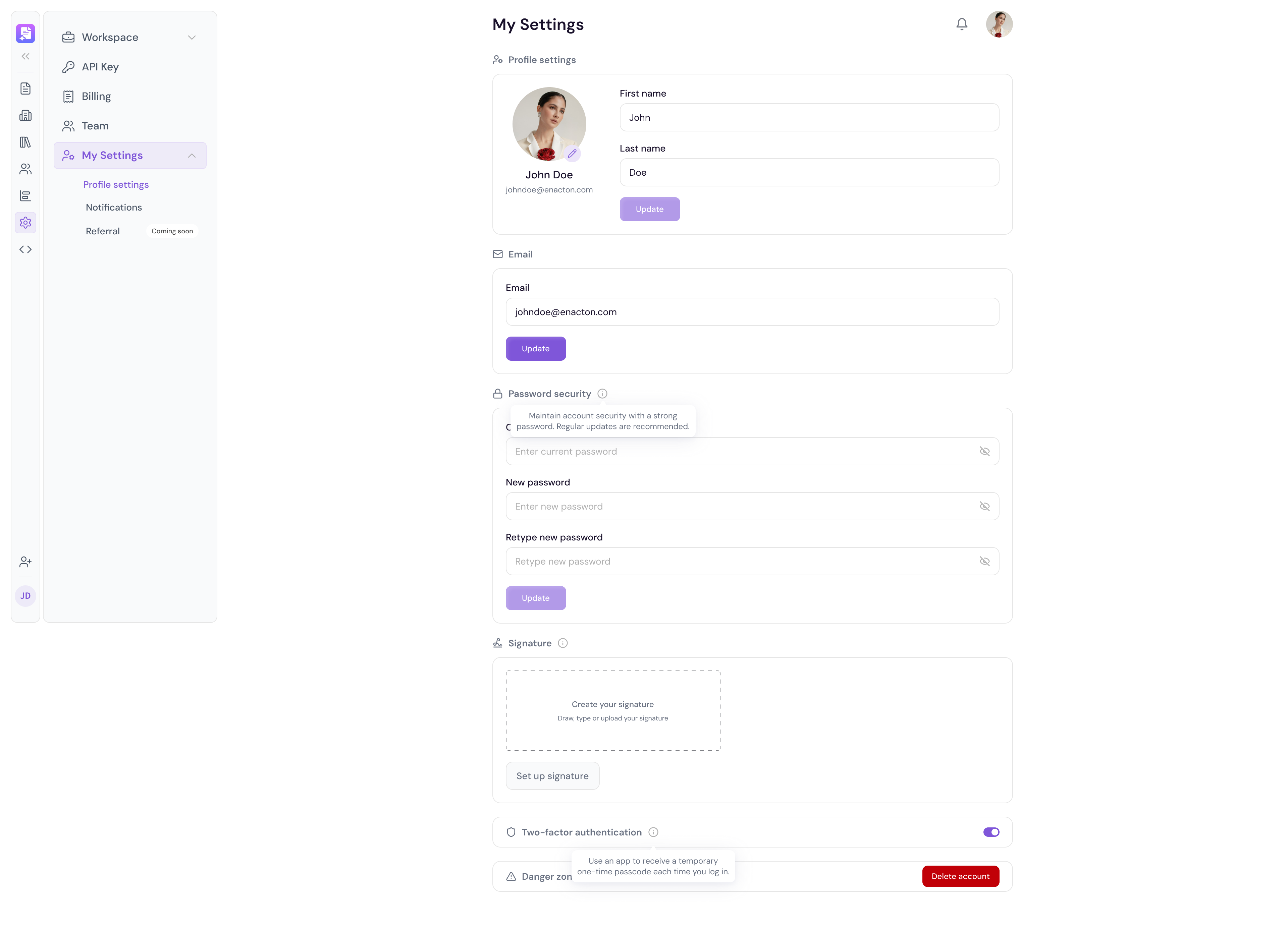
Two-factor authentication (2FA) adds an extra layer of security to your Proposal.biz account. Once enabled, you will be asked to verify your identity with a second step every time you log in keeping your workspace protected even if your password is compromised.
Enabling 2FA
Go to your Account Settings
Navigate to the Security section
Click Set up two-factor authentication
Follow the on-screen instructions to link your authenticator app or preferred verification method
Enter the verification code to confirm setup
Click Enable to activate 2FA on your account
💡 Pro Tip Use an authenticator app like Google Authenticator for the most reliable 2FA experience. Avoid relying solely on SMS-based verification where possible.
Logging In with 2FA Enabled
Once 2FA is active, here is what happens every time you log in:
Enter your email and password as usual
Proposal.biz will prompt you for your second verification step
Enter the code from your authenticator app
Click Verify to access your workspace
Disabling 2FA
If you need to turn off 2FA at any point:
Go to Account Settings → Security
Click Disable two-factor authentication
Confirm your decision when prompted
Note Disabling 2FA reduces the security of your account. We recommend keeping it enabled at all times.