

Overview
The left panel is your content building hub inside the builder. Every element, block, layout, and section you can add to your document lives here. It is organized into tabs each represented by an icon on the left side of the builder.
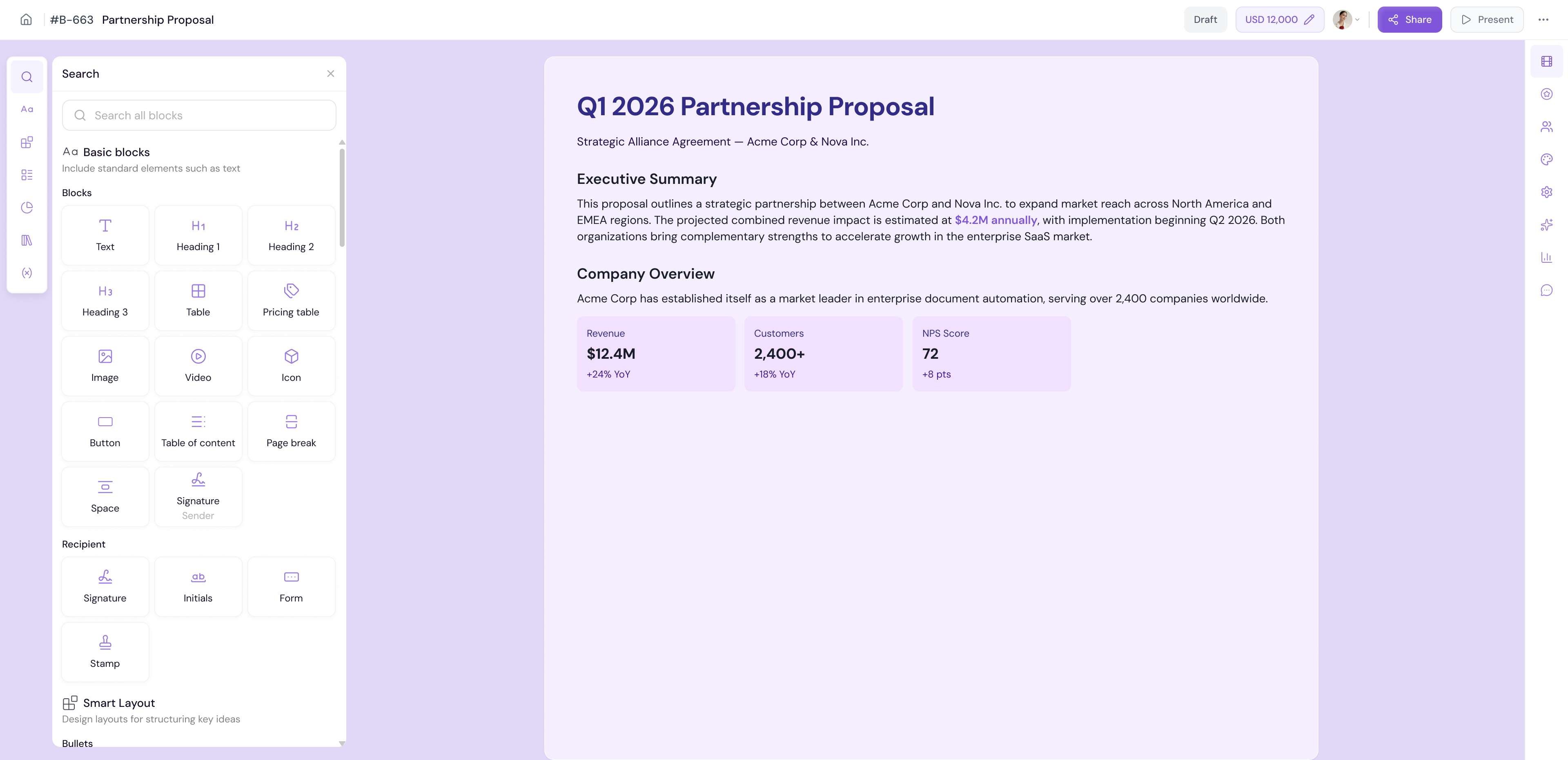
Search
The Search tab lets you quickly find any block, layout, section, or element across the entire left panel without having to browse through each tab manually.
Click the Search icon on the left panel
Type your keyword in the search bar
Matching results from all tabs will appear instantly
-
Click on any result to insert it into your document
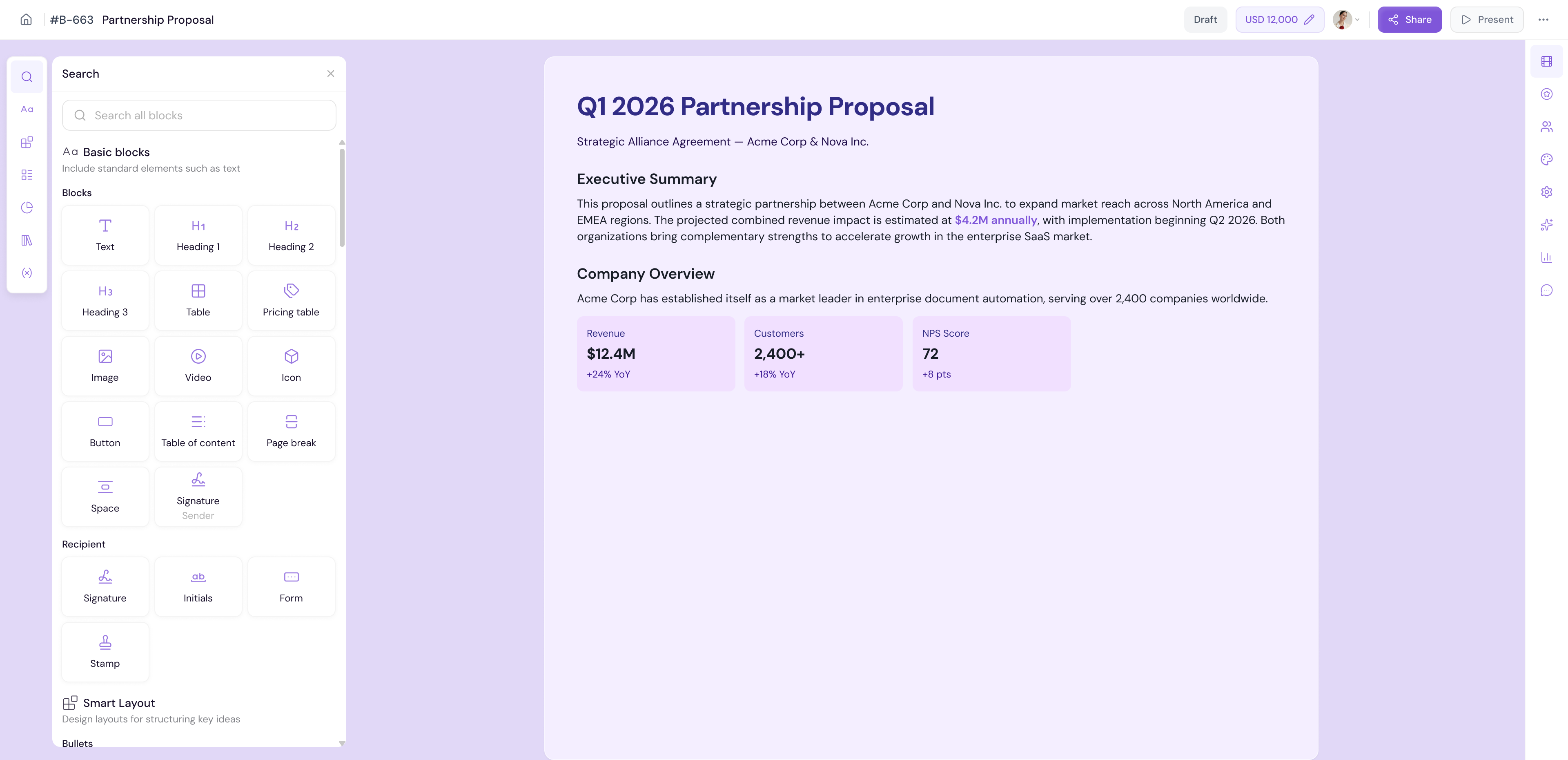
💡 Pro Tip Use Search when you know exactly what you are looking for. It is the fastest way to find and add any element especially when you are working with a large number of blocks and sections.
Basic Blocks
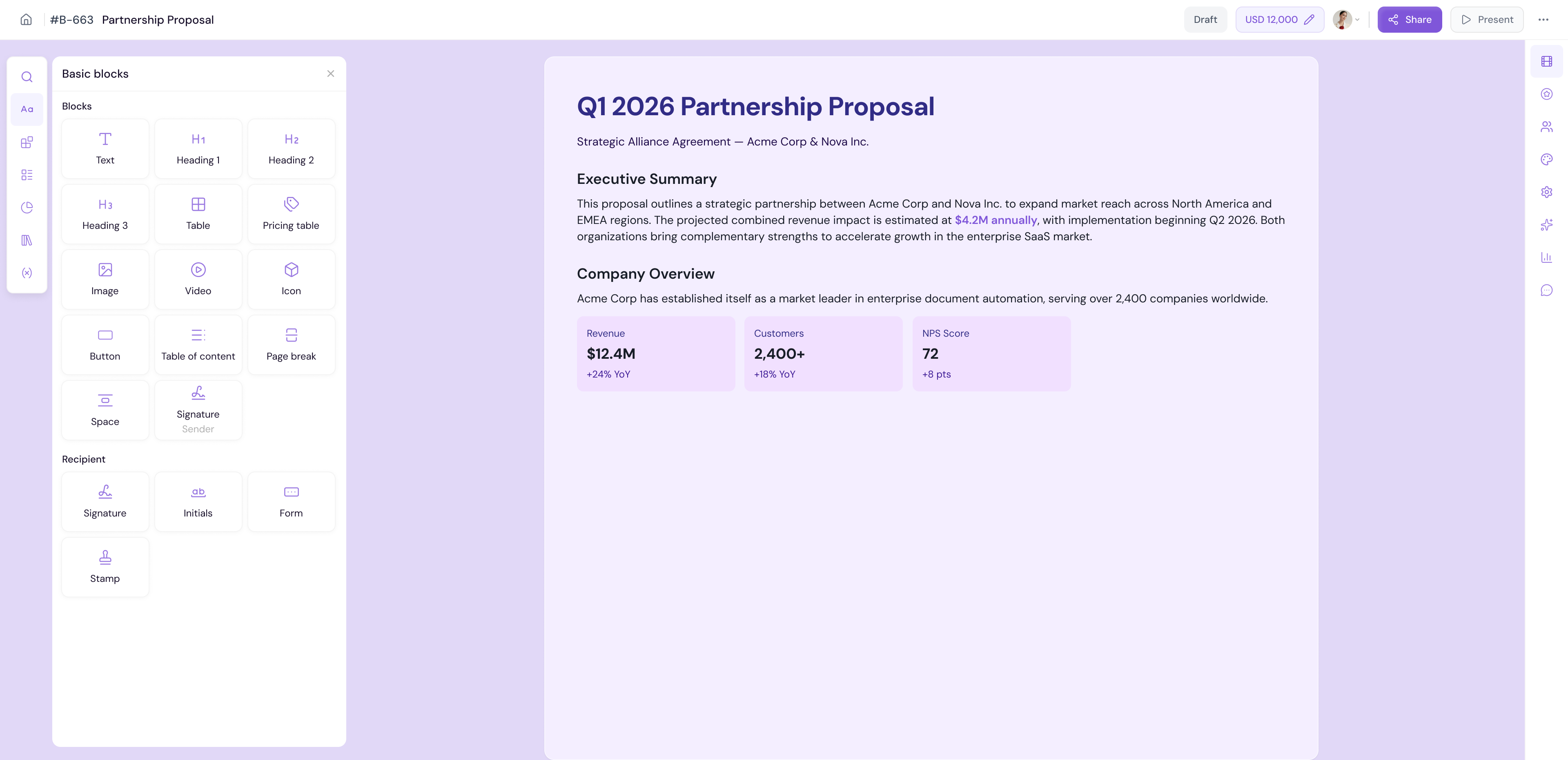
Basic Blocks are the core content elements you use to build your document. These are the foundational building blocks for every document type.
Available basic blocks include:
Text — Add headings, paragraphs, and formatted text
Image — Add an image block to your document
Button — Add a clickable call-to-action button
Divider — Add a horizontal divider to separate sections
Spacer — Add vertical spacing between elements
Table — Add a data table
List — Add bulleted or numbered lists
Video — Embed a video
To add a basic block:
Click the Basic Blocks tab on the left panel
Browse the available blocks
-
Click on any block or drag it onto the canvas to add it to your document
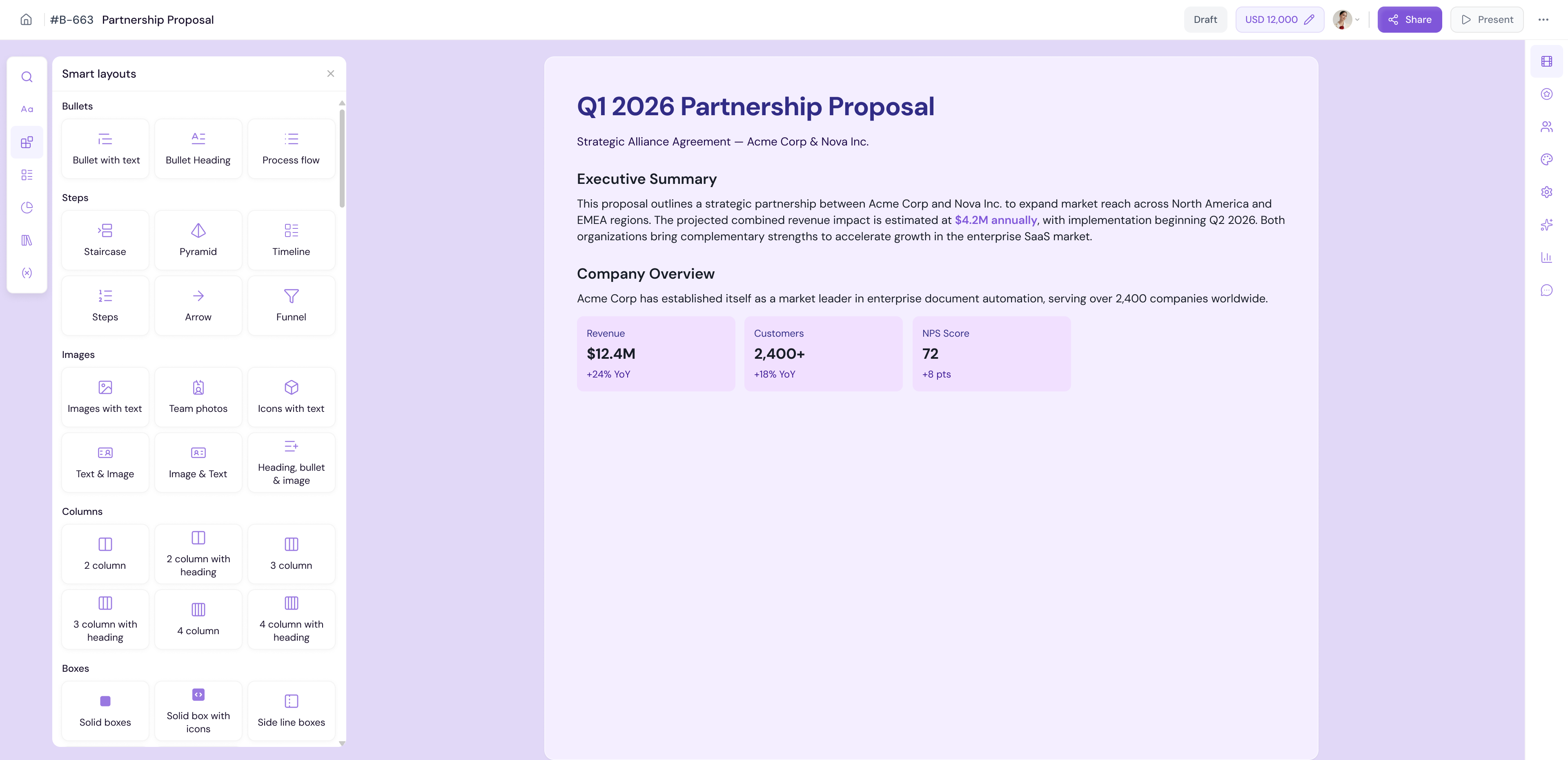
Smart Layouts
Smart Layouts are pre-designed layout combinations that give your document a professional structure in one click. Instead of adding and arranging individual blocks manually, a smart layout drops a complete section with content placeholders already in place.
Click the Smart Layouts tab on the left panel
Browse the available layouts
Click on any layout or drag it onto the canvas
-
Replace the placeholder content with your own
💡 Pro Tip Use Smart Layouts when you want to add a professionally structured section quickly — such as a team introduction, feature comparison, or pricing table. It saves you the time of building the layout block by block.
Content Master
The Content Master tab gives you direct access to the content stored in your Knowledge Base — right inside the builder. Any content blocks you have created or extracted from your data sources are available here to insert into your document.
Click the Content Master tab on the left panel
Browse your available content blocks (e.g. About Us, Services, Testimonials)
-
Click on any content block to insert it into your document
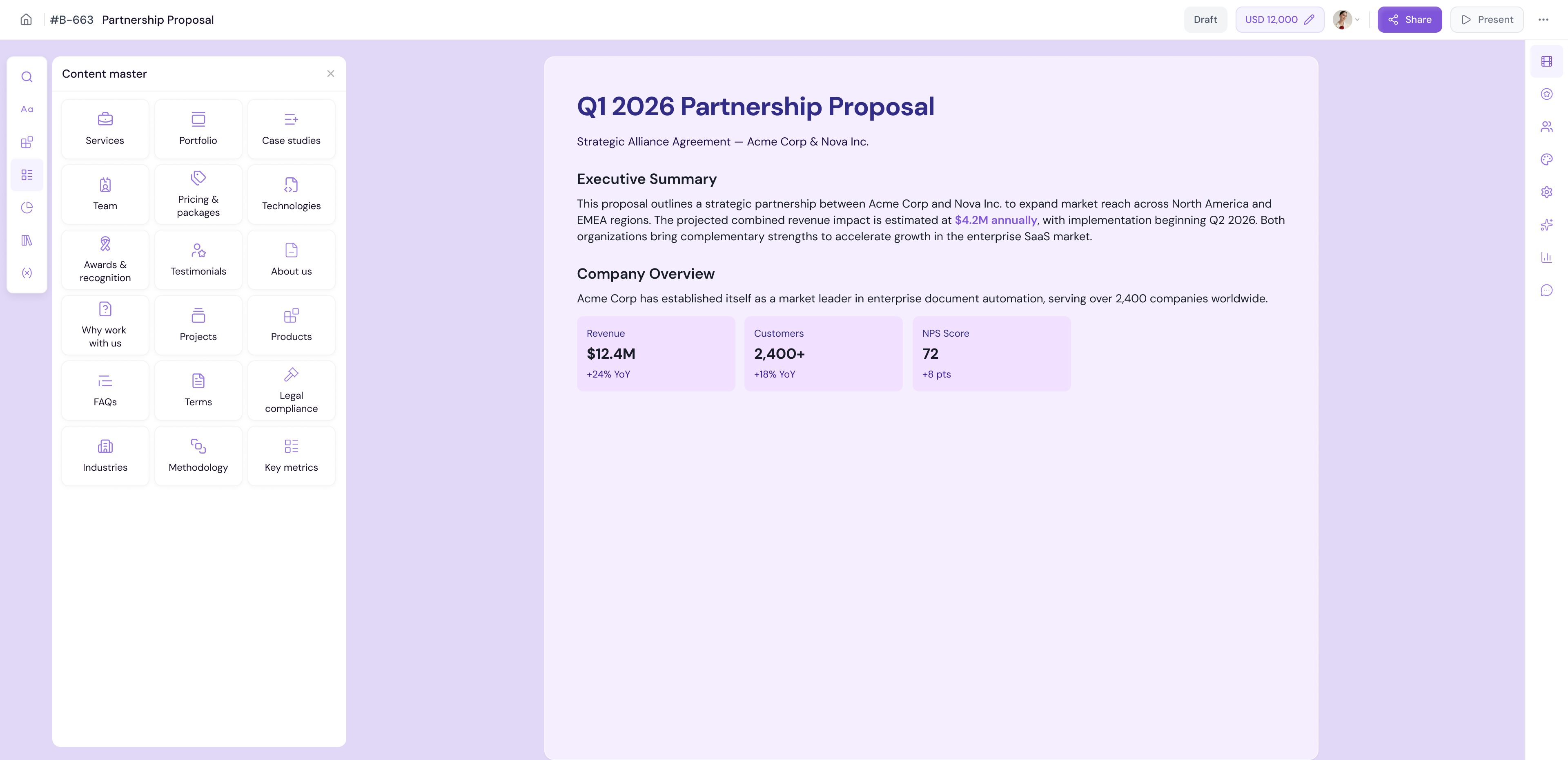
💡 Pro Tip Content Master blocks are automatically kept in sync with your Knowledge Base. If you update your content in Content Master, the next time you insert it into a document it will reflect the latest version.
Charts
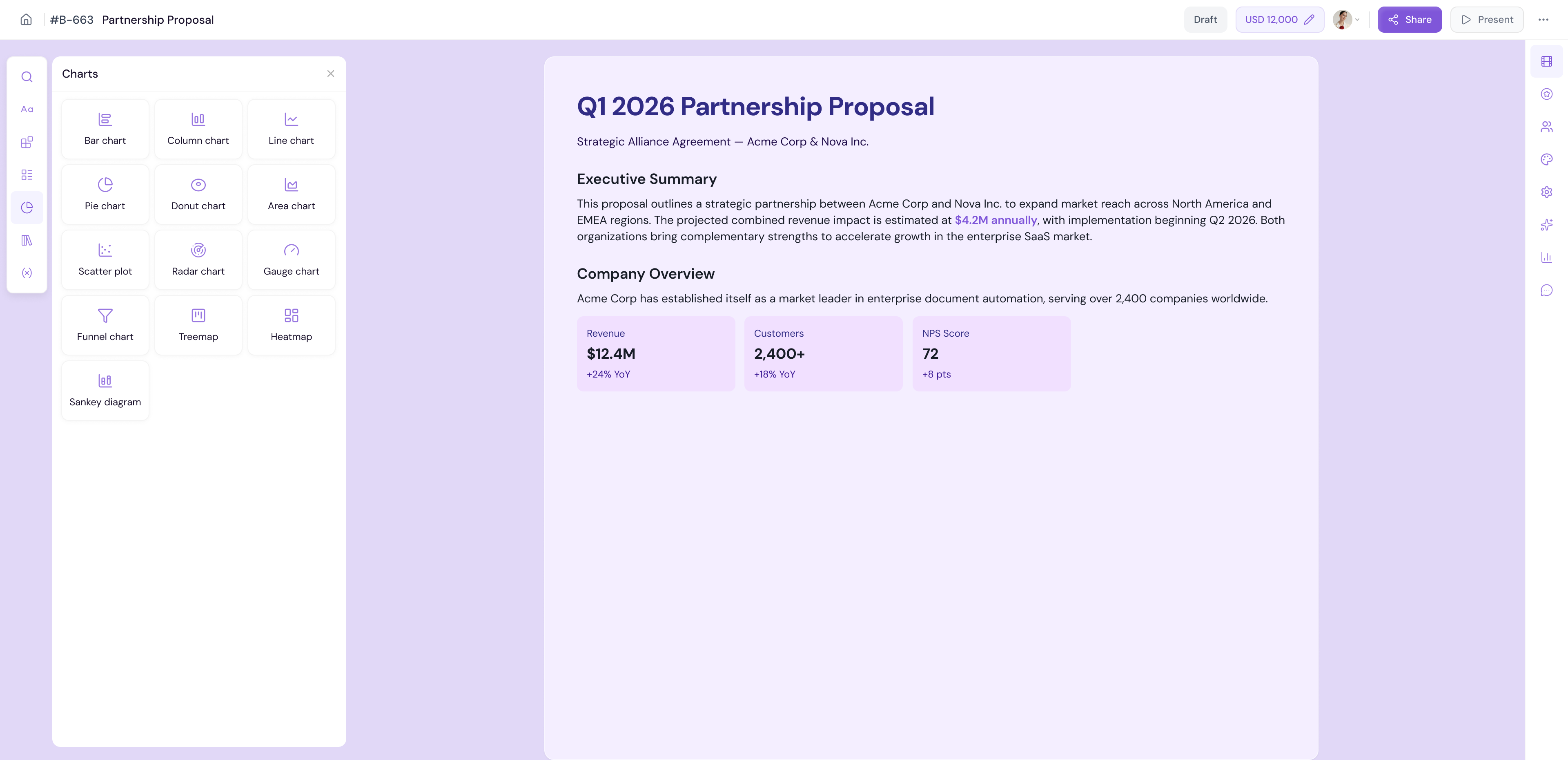
The Charts tab lets you add data visualizations and graphs directly into your document. Use charts to present data in a clear, visual way that makes your proposals and reports more compelling.
Click the Charts tab on the left panel
Browse the available chart types
Click on a chart to add it to your document
-
Configure the chart data and settings on the canvas
Public Sections
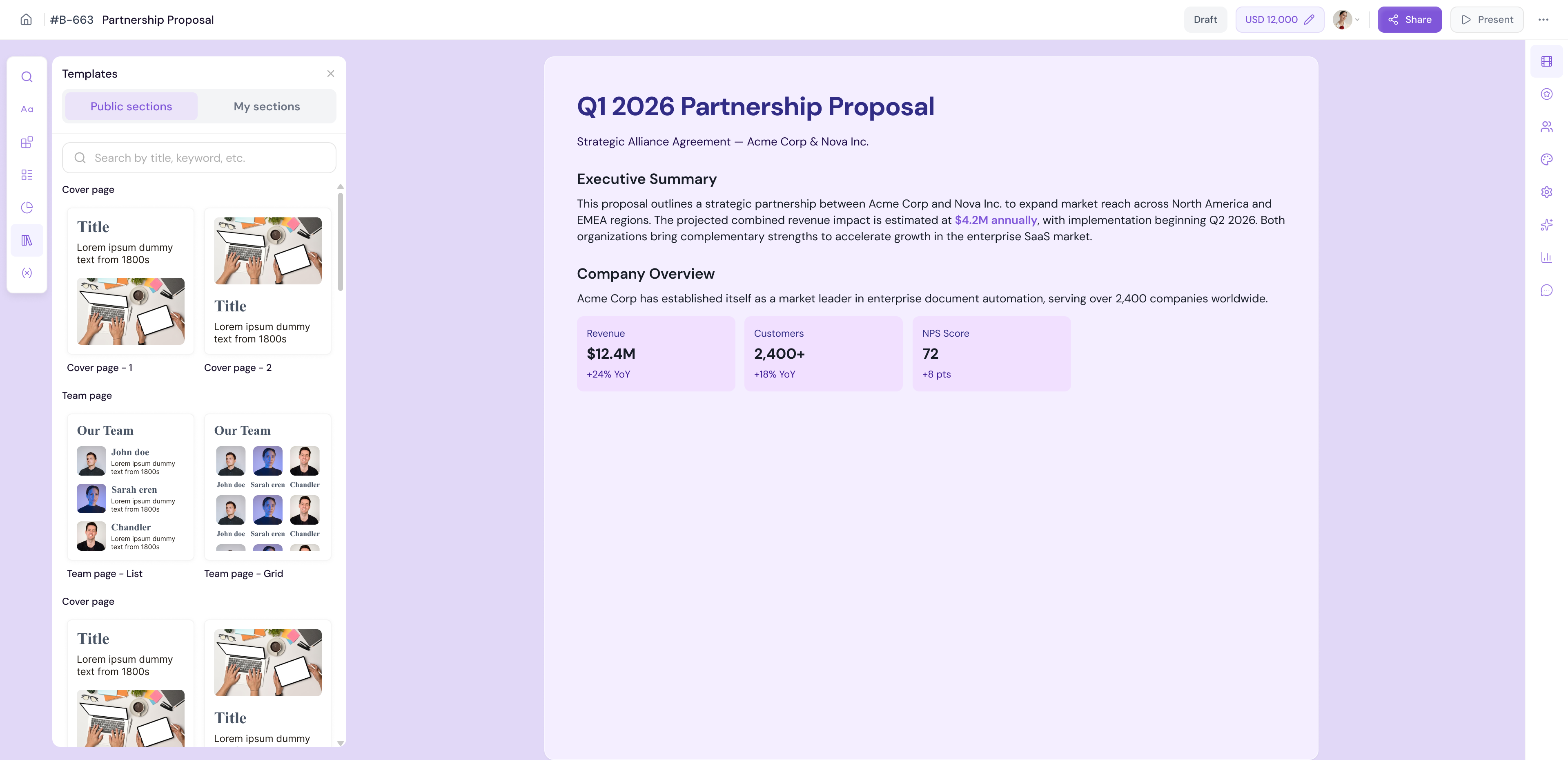
Public Sections are pre-built, reusable content sections available to all Proposal.biz users. These are professionally designed sections you can drop into any document instantly.
Click the Public Sections tab on the left panel
Browse the available sections
Hover over a section to reveal Use and Preview options
-
Click Use to insert the section into your document
My Sections
My Sections contains all the sections you have manually saved from the builder. Any section you save using the block toolbar's Save Section action will appear here for reuse across any future document.
Click the My Sections tab on the left panel
Browse your saved sections
Hover over a section to reveal Use and Preview options
Click Use to insert the section into your document
Note If you have not saved any sections yet, this tab will show an empty state. Save sections from the builder using the block toolbar to start building your personal library.
Variables
Variables are dynamic placeholders that auto-populate with data from your workspace, integrations, or recipient details. Use variables to create personalized documents without manually entering information for each recipient.
Click the Variables tab on the left panel
Browse the available variables
Click on any variable to insert it into your document at the cursor position
When the document is shared with a recipient, the variable is automatically replaced with the actual value for example a recipient's name, company, deal value, or any field mapped from your CRM.
💡 Pro Tip Variables are especially powerful when combined with CRM integrations like HubSpot or Zoho. Map your CRM fields to Proposal.biz variables and every document you create will be automatically personalized for each recipient no copy-pasting required.
How to Add Any Element to Your Document
Across all tabs in the left panel, adding an element follows the same pattern:
Open the relevant tab
Browse or search for the element you need
Click on the element to insert it at the bottom of your canvas, or drag and drop it to a specific position on the canvas
Edit the element directly on the canvas once it is placed
Next Steps Learn how to edit and work with content on the canvas in The Canvas.