

Overview
Once your document is ready, Proposal.biz makes it easy to share it with recipients directly from the editor. You can share via email or by copying a link, configure sharing settings, control access through password protection and expiry, and manage document versions — all from one place. Each recipient gets their own unique link so you can track engagement individually.
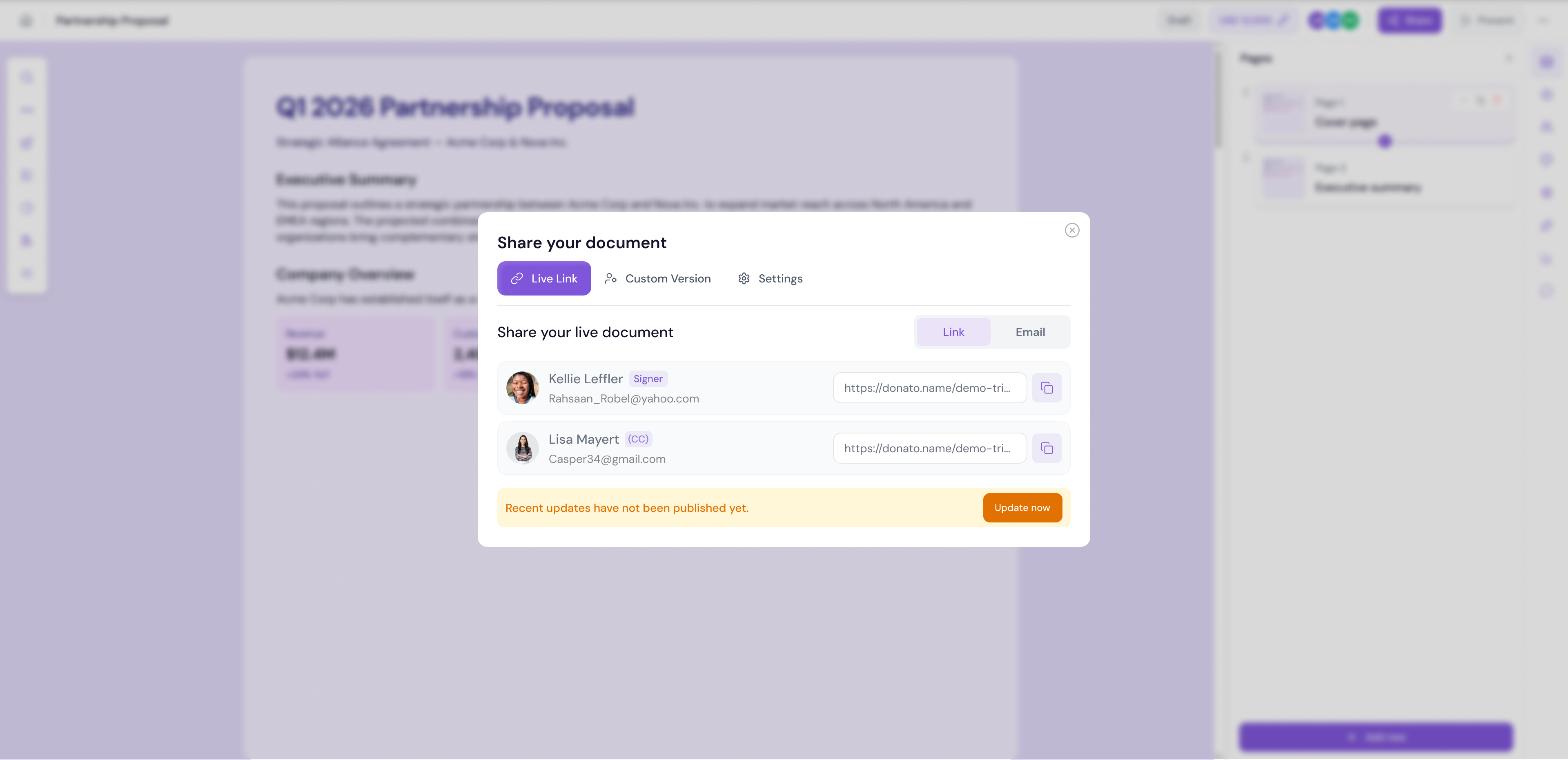
Sharing Your Document
Click the Share button in the top bar of the editor
The Share modal will open in its default state
Sharing Methods
Proposal.biz gives you two ways to share your document:
Share via Email
Enter the recipient's email address in the Share modal
Add a personal message if needed
Click Send to deliver the document directly to their inbox
The recipient will receive an email with a unique link to view the document
Share via Link
Open the Share modal
Click Copy Link to copy the shareable document URL to your clipboard
Paste the link into a Slack message, email, or any other communication channel
Note Each link is unique to the recipient. This means you can track exactly who opened, viewed, and completed your document — even if you share the link outside of Proposal.biz.
Recipient-Specific Links
Every recipient gets their own unique link. This is important because:
Individual tracking — You can see exactly how each recipient engages with your document in Reports
Separate analytics — Sessions, reading time, completion rate, and CTA clicks are tracked per recipient
Independent access — Revoking access for one recipient does not affect other recipients
💡 Pro Tip Always create separate links per recipient rather than sharing one generic link. This gives you full visibility into who has viewed your document and how they engaged with it — which is critical for follow-up timing.
Share Settings
Click on the Settings tab within the Share modal to configure how recipients can access and interact with your document.
Available settings include:
-
Document Expiry — Set an expiry date after which the document will no longer be accessible
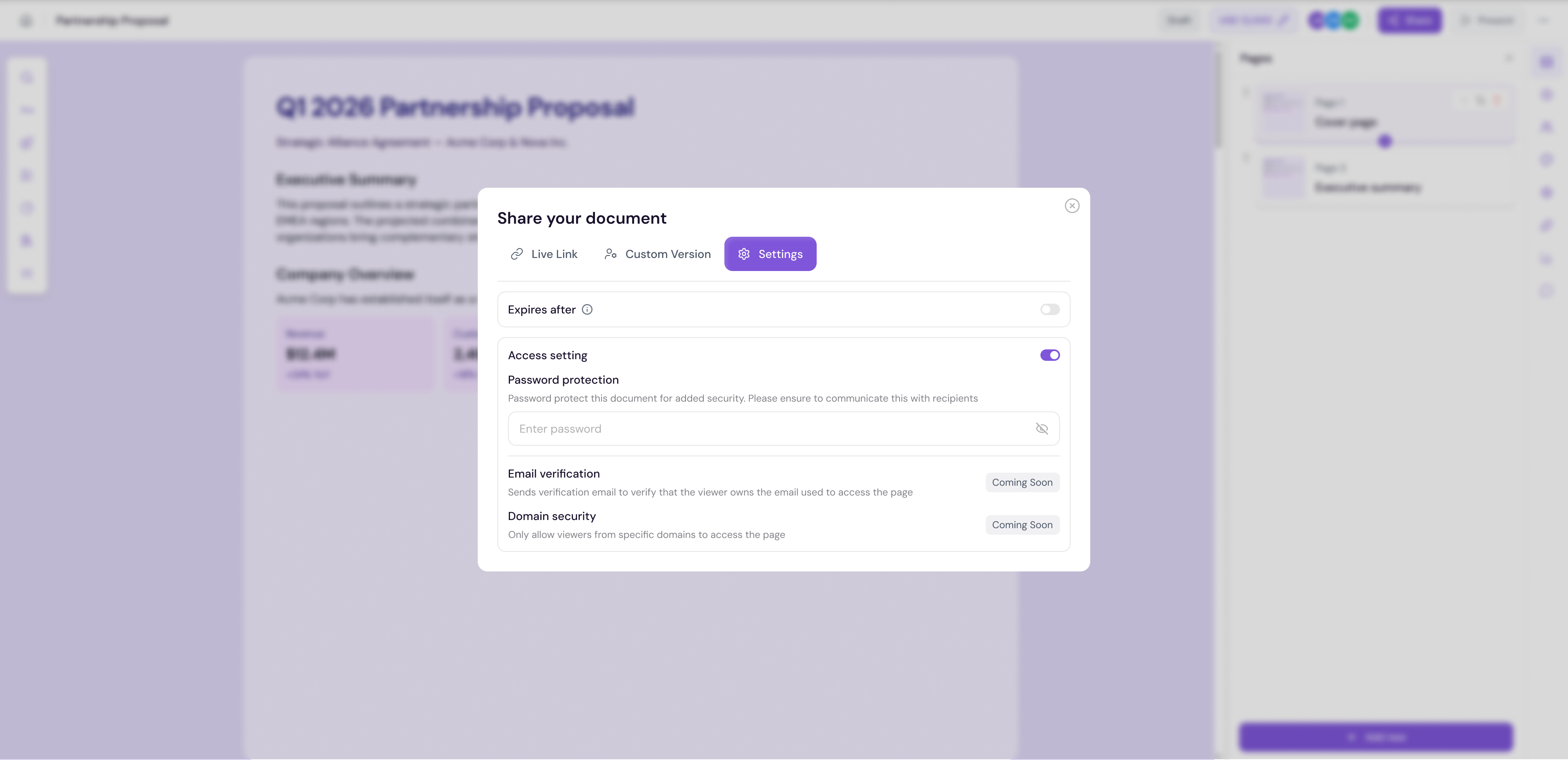
💡 Pro Tip Enable password protection for sensitive proposals containing confidential pricing or business terms. This adds an extra layer of security without complicating the recipient experience.
Document Versioning
Proposal.biz automatically tracks versions of your document. Every time you make significant changes and update a shared document, a new version is created. This lets you:
Track changes over time — See what changed between versions
Compare performance — Analyse which version performed better in Reports
Maintain history — Keep a full record of how your document evolved
Creating a New Version:
Make your edits in the editor
Click Update Status to push the changes to the live link
Proposal.biz automatically creates a new version
Viewing Versions:
Go to Reports and open the detailed analytics for your document
Scroll down to the Custom Versions section
Each version is listed with its own metrics — Unique Readers, Total View Time, Average Session Duration, Completion, and Recipients
💡 Pro Tip Use versioning strategically. If you are making a major change to your proposal — such as updated pricing or a revised scope — update the document and track how the new version performs compared to the previous one. This helps you learn what resonates most with your recipients.
Recipient View
Once your document is shared, recipients see it in a clean, branded view outside of the editor. The recipient experience is designed to be distraction-free —showing only your document content, branding, and any call-to-action elements you have included.
Expired Documents
If a document has passed its expiry date, recipients will see a clear expiry message instead of the document content.
Note If you need to reactivate an expired document, go back to the editor and update the expiry date in the Share settings, then share the document link again.
Updating a Shared Document
If you make changes to a document after it has already been shared:
Make your edits in the builder
A banner will appear: "Recent updates have not been published in the live link- Update Now"
Recipients will see the updated version the next time they open the link
💡 Pro Tip Always click Update Status after making changes to a sent document. If you do not update, recipients will continue to see the older version of your document.
Presenting Your Document Before Sharing
Before sharing, use the Present button in the top bar to preview your document exactly as a recipient would see it. This helps you catch any issues with layout, formatting, or content before the document goes out.
Click Present in the top bar
Review your document in full-screen preview mode
Close the preview to return to the editor
Click Share when you are satisfied
Next Steps Learn how to save, export, and manage your documents in Saving, Exporting & Managing.