

Overview
When you log in to Proposal.biz, your dashboard is the first thing you see. It gives you a real-time snapshot of your document activity and quick access to everything in your workspace.
[Insert screenshot: Full dashboard view]
The Sidebar
The sidebar on the left is your main navigation. From here you can access:
Documents — View and manage all your documents. Expand this section to create new folders and organize your documents by project or client
-
Template Center — Access your saved sections and templates as well as publicly available ones
My Sections
My Templates
Public Sections
Public Templates
-
Knowledge Base — Manage your content master and data sources
Content Master
Data Sources
Recipients — View and manage your document recipients
Reports — Track document performance and viewer engagement
Settings — Configure your workspace, branding, and account preferences
Integrations — Connect and manage your third-party tools
At the bottom of the sidebar you will also find Invite users to quickly add teammates to your workspace.
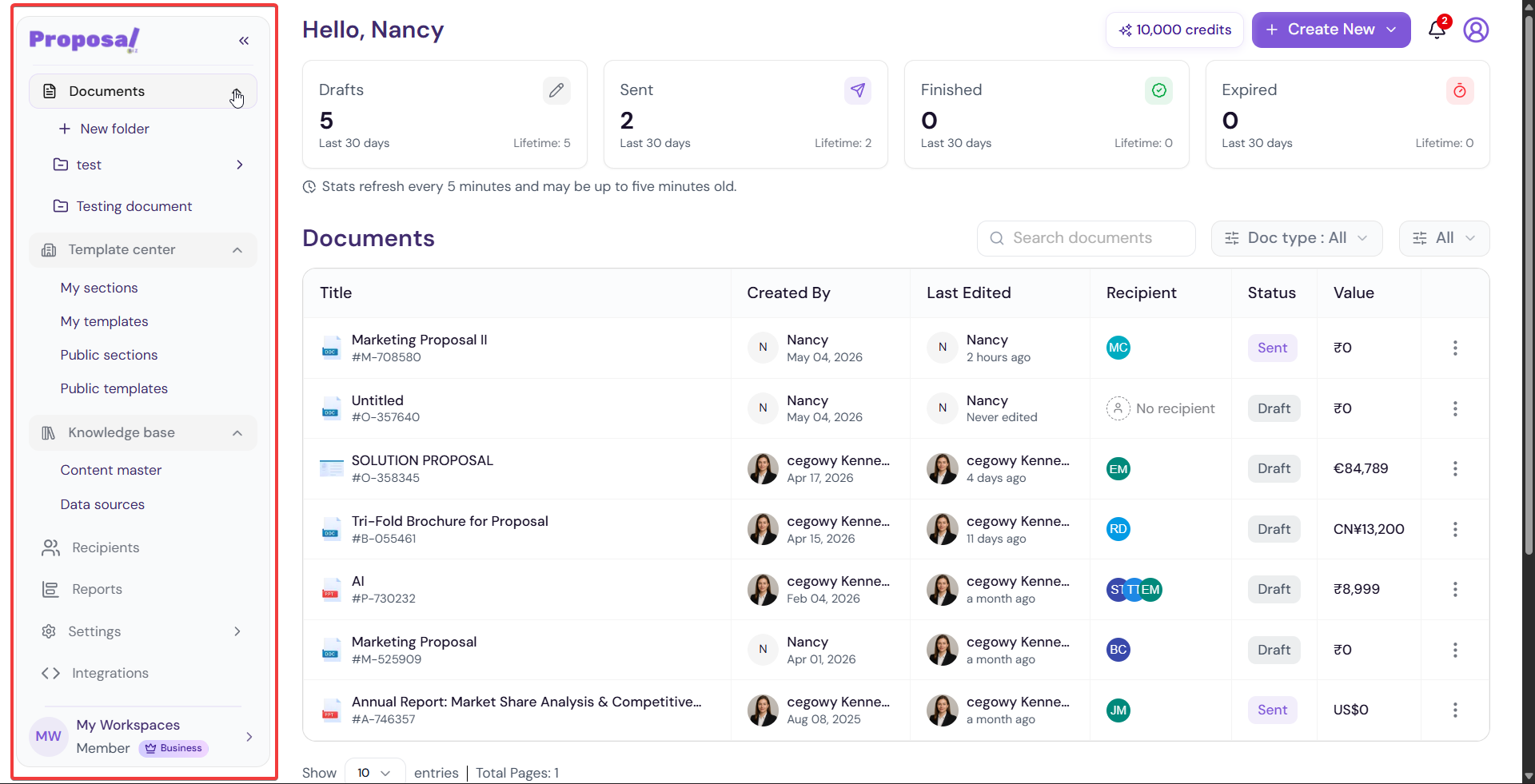
[Insert screenshot: Sidebar — full navigation view with Documents expanded showing folders]
💡 Pro Tip Use folders inside the Documents section to keep your workspace organized. Click + New folder to create a folder and group related documents together.
Document Stats
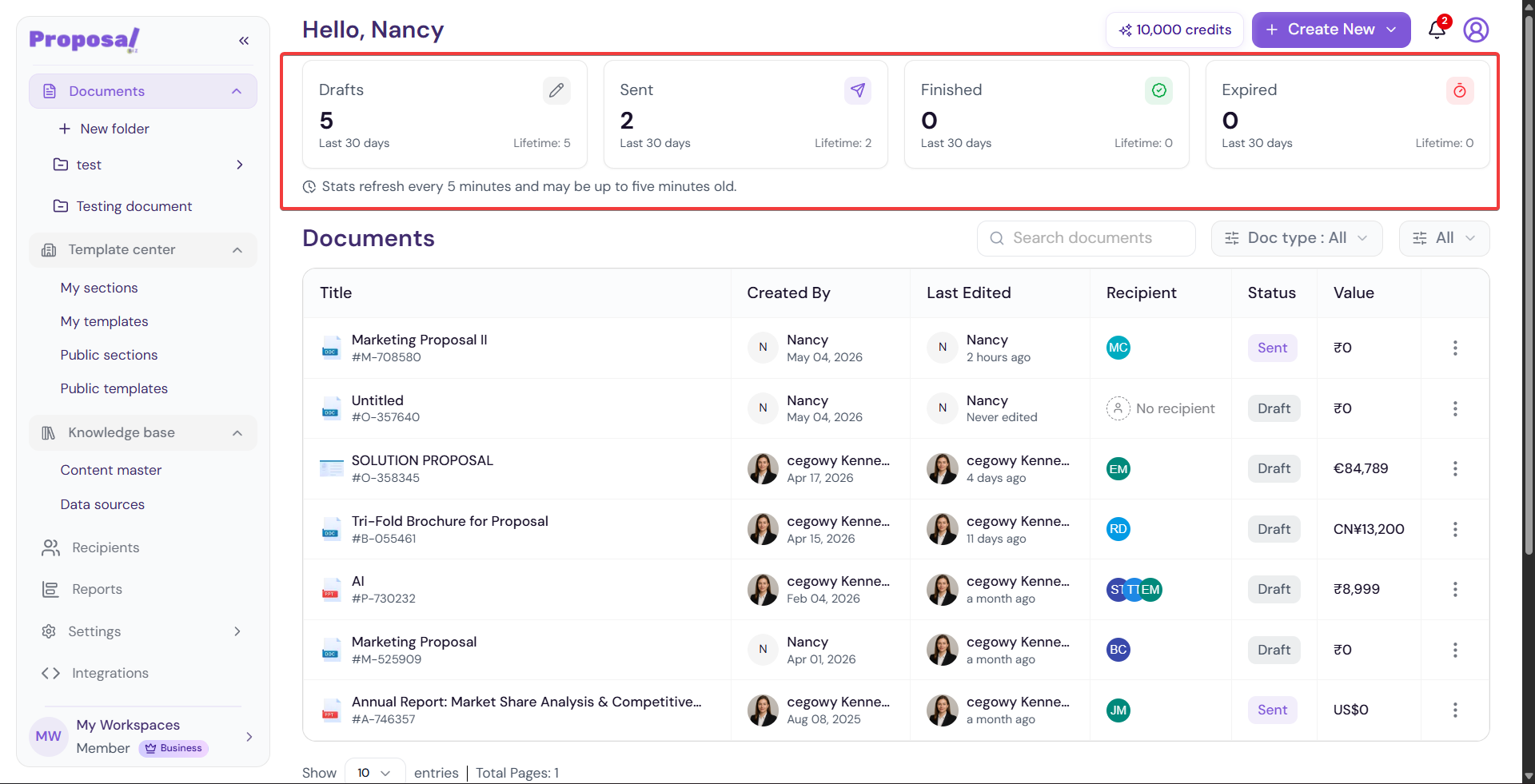
At the top of your dashboard you will see four stat cards giving you a quick overview of your document activity:
Drafts — Documents you have created but not yet sent
Sent — Documents that have been shared with recipients
Finished — Documents that have been completed
Expired — Documents that have passed their expiry date
Each card shows activity for the last 30 days as well as a lifetime total.
Note Stats refresh every 5 minutes and may be up to five minutes old.
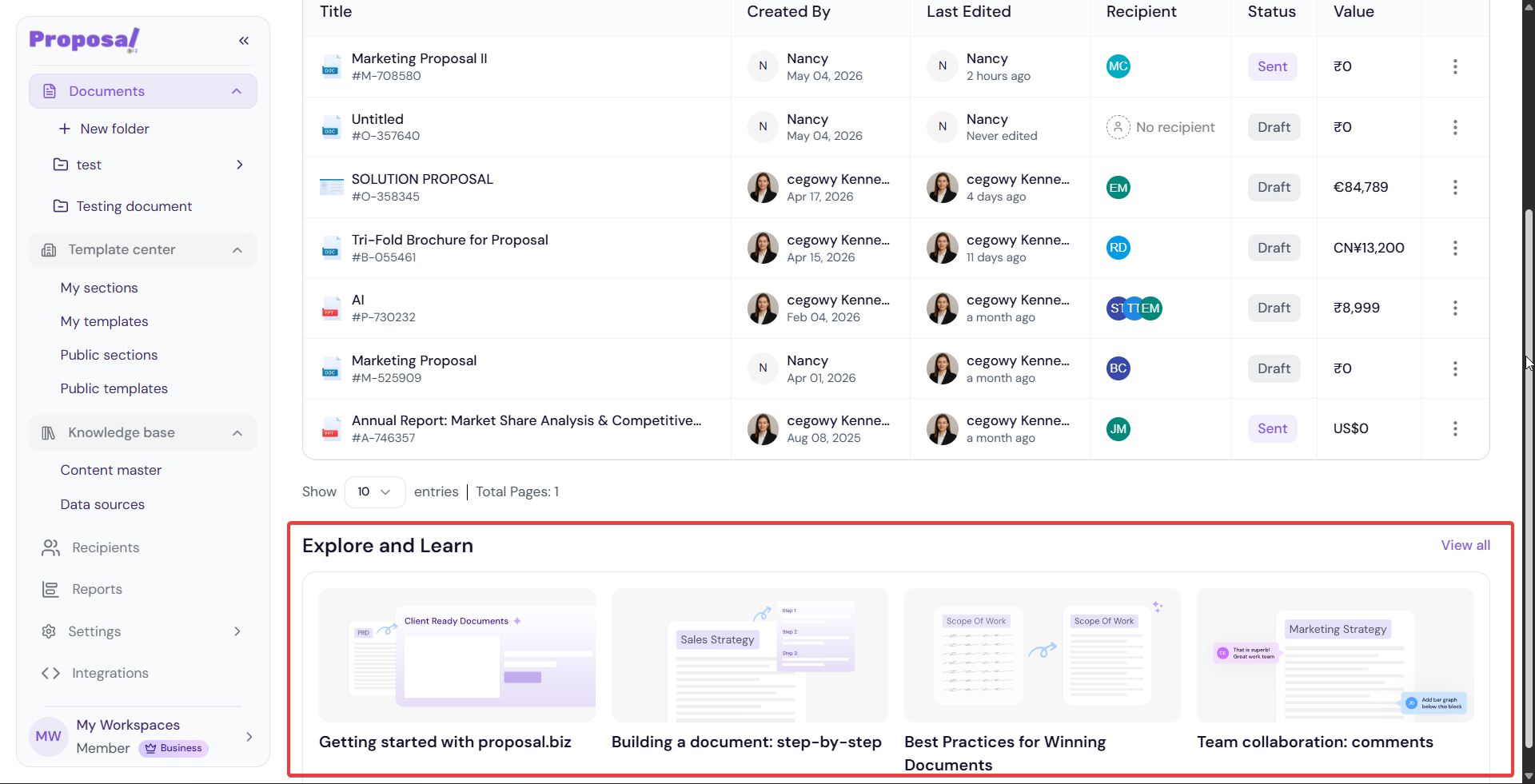
Your Documents List
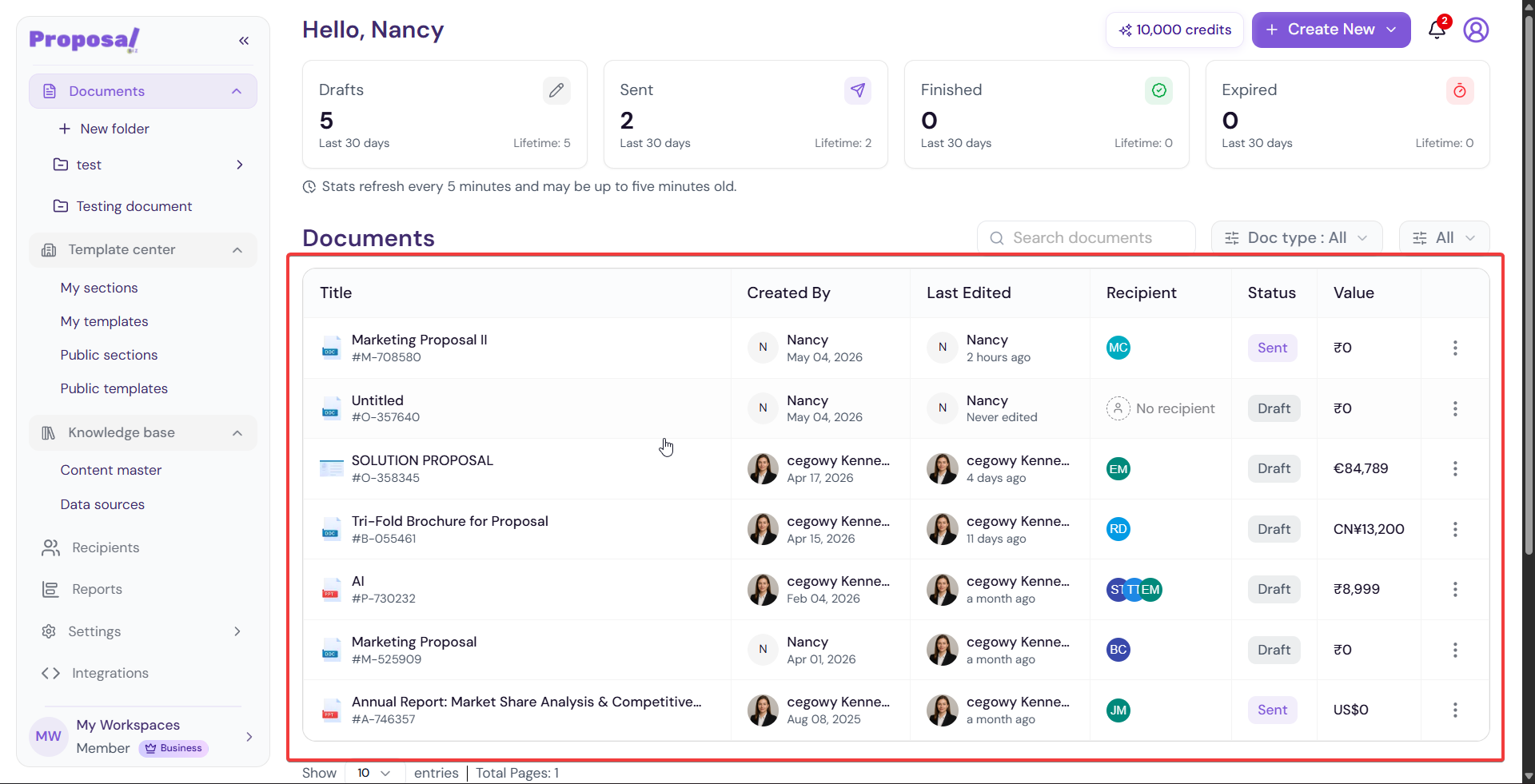
Below the stats, you will find a full list of your documents with the following details at a glance:
Title — Document name and ID
Created By — Team member who created it
Last Edited — When the document was last updated
Recipient — Who the document is addressed to
Status — Current state of the document (e.g. Draft, Sent)
Value — Monetary value assigned to the document
You can search for any document using the Search documents bar, filter by Doc type, or adjust how many entries are shown per page.
Creating a New Document
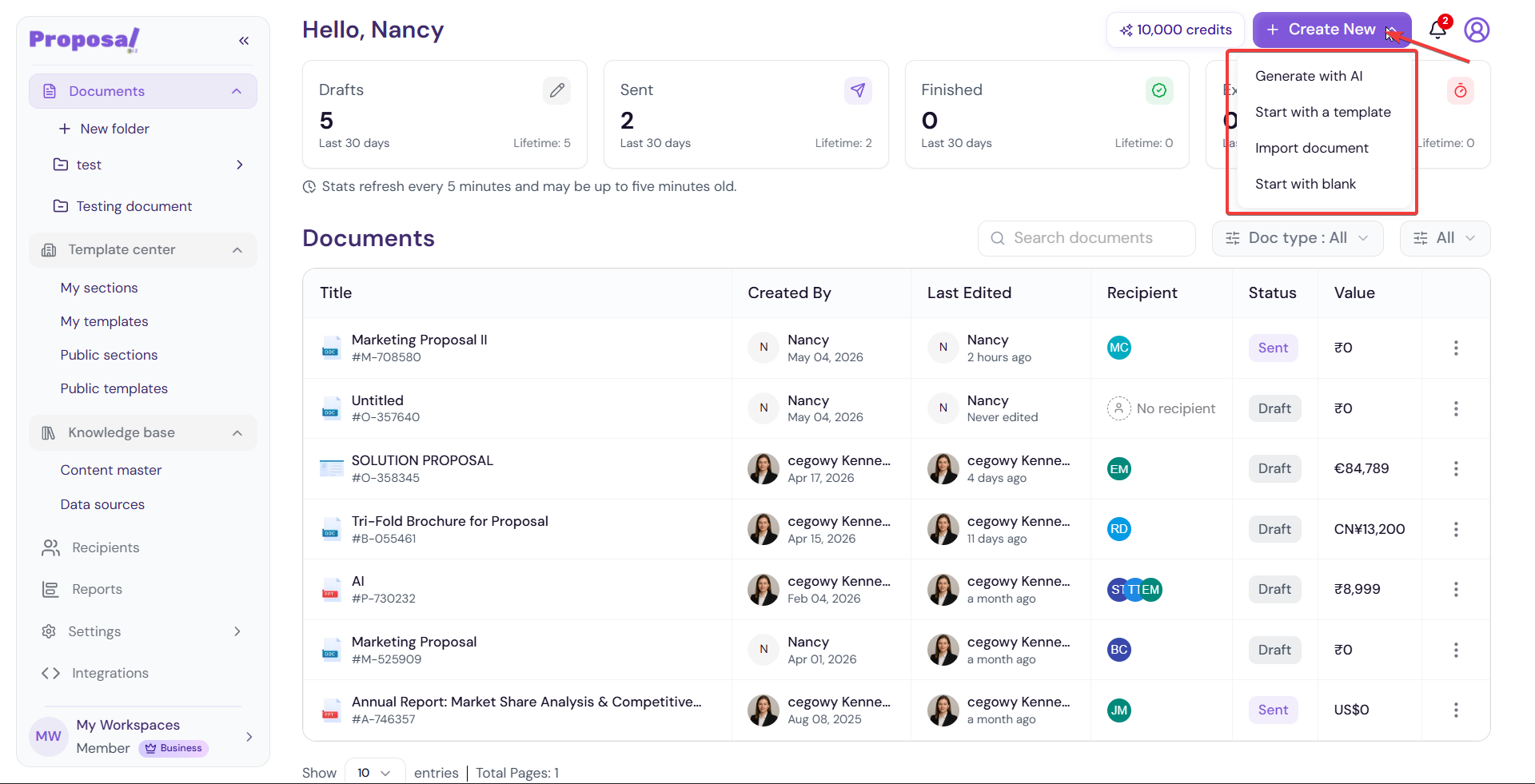
Click the + Create New button in the top right corner of your dashboard to start creating a new document. You can choose from 4 ways to create — generate with AI, use a template, import a document, or start from a blank canvas.
Explore and Learn
At the bottom of your dashboard, the Explore and Learn section surfaces ready-to-use document examples and tutorials to help you get the most out of Proposal.biz. Click View all to browse the full library.
Browser Notifications
If you haven't enabled browser notifications yet, you will see a prompt at the top of your dashboard. Click Enable notifications to get instant updates on document activity, comments, signatures, and collaborator events.
💡 Pro Tip Enabling browser notifications ensures you never miss the moment a recipient opens, views, or signs your document.
Next Steps Now that you are familiar with your dashboard, move on to learn how to create your first document.