

Overview
Connecting Zoho CRM to Proposal.biz allows you to sync your CRM data and create documents directly from inside Zoho CRM. Once connected and installed, you can send proposals, quotes, and other documents to your Zoho contacts without leaving your CRM.
[Insert screenshot: Integrations — Zoho CRM card on the Integrations page]
Part 1: Connecting Zoho CRM
Step 1: Open the Zoho CRM Integration
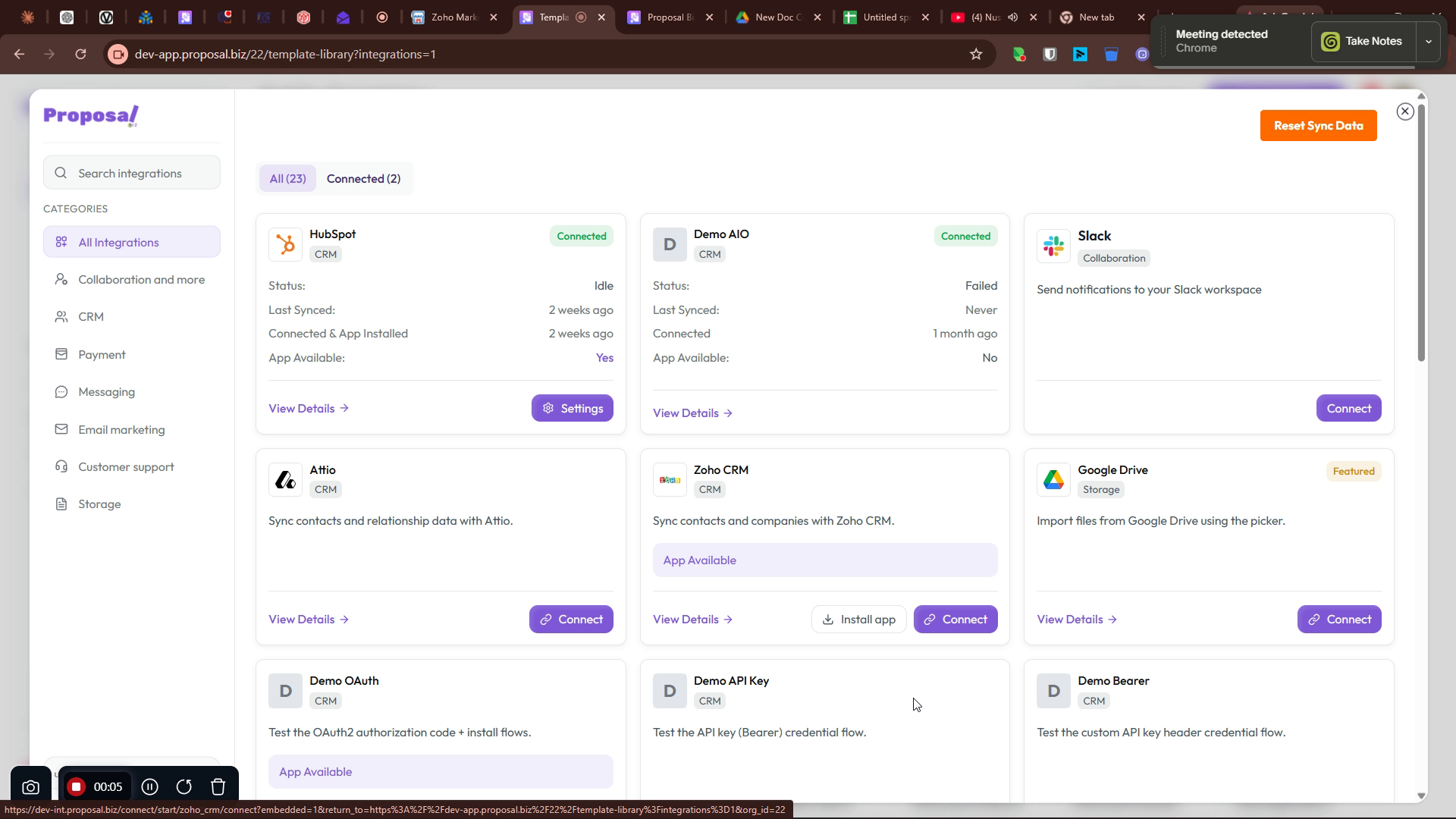
From your Proposal.biz dashboard go to Integrations in the left sidebar
Locate the Zoho CRM integration
Click Connect to begin the connection process
Step 2: Log In to Zoho
You will be taken to the Zoho login screen
Verify that your email address is correct
Click Next to proceed
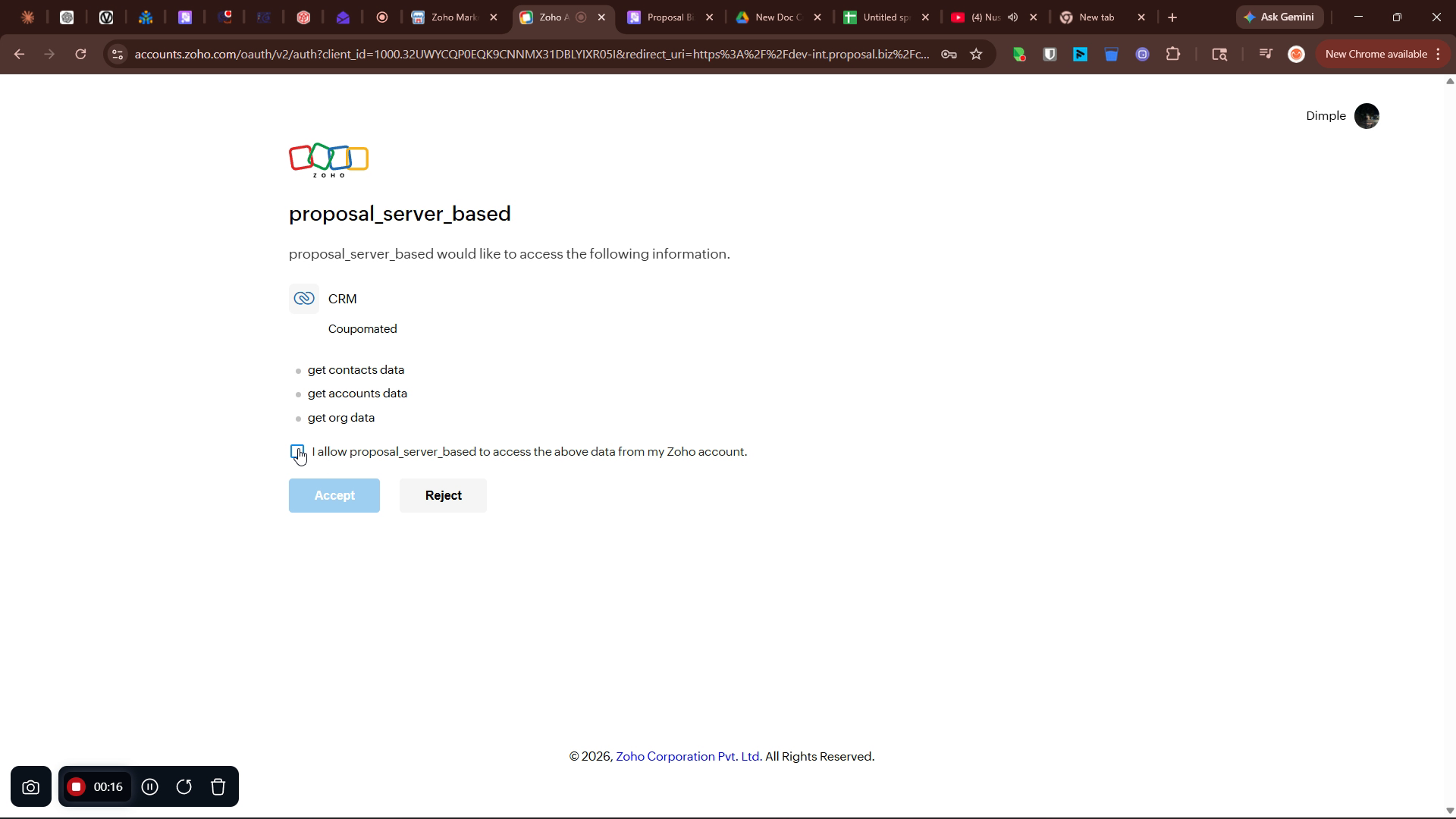
Step 3: Authorize Proposal.biz to Access Zoho CRM
Review the access permissions Proposal.biz is requesting
Check the authorization box to grant Proposal.biz access to your Zoho CRM account
-
Click Accept to complete the authorization
Step 4: Confirm Successful Connection
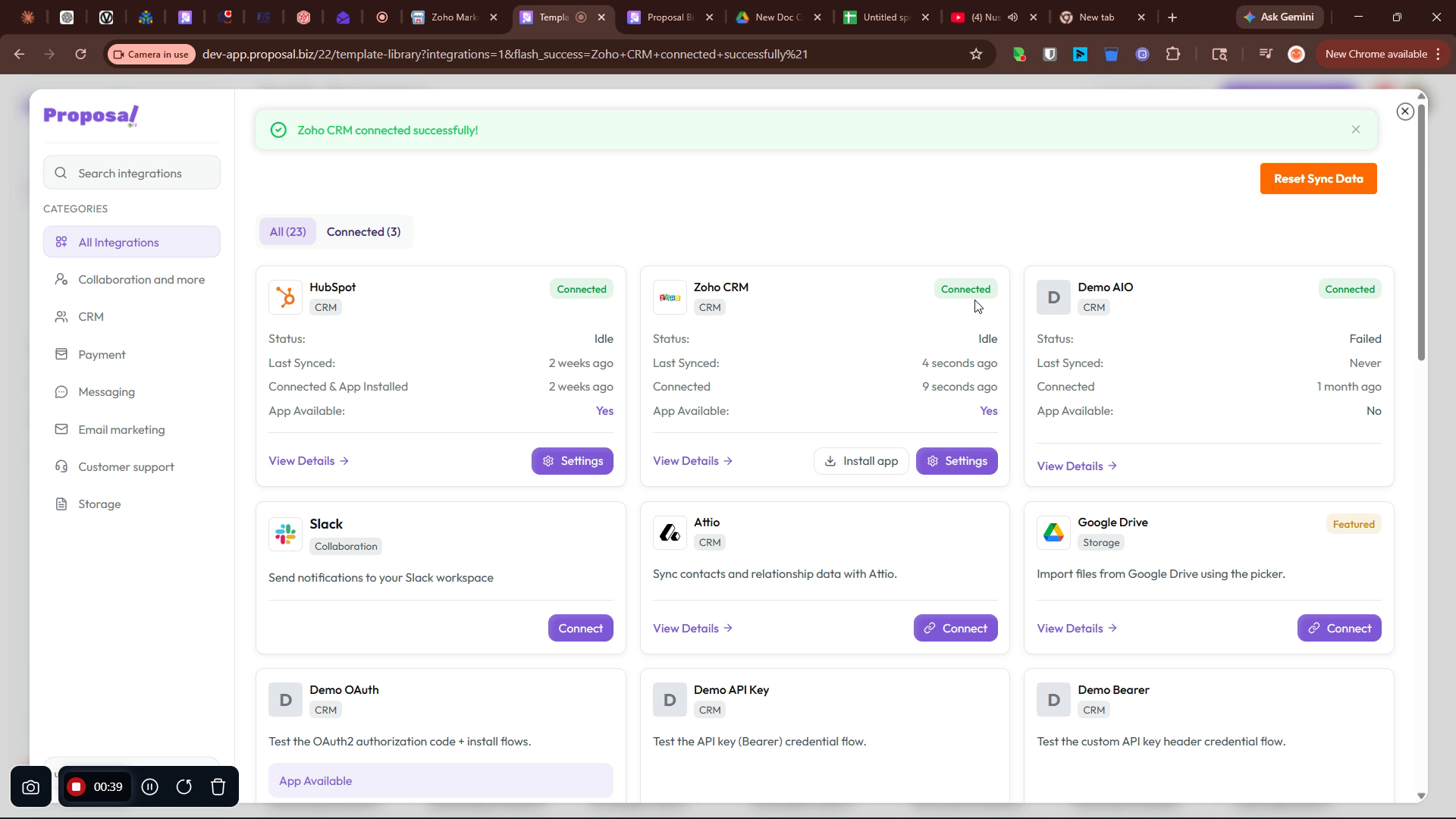
After authorization, you will be redirected back to Proposal.biz. Confirm that a success message appears indicating that Zoho CRM is now connected.
Part 2a: Installing the Zoho CRM App
After connecting, you need to install the Proposal.biz app inside Zoho CRM so you can create and send documents directly from your CRM.
Step 1: Open the Zoho CRM Installation
Go to the Integrations page in Proposal.biz
Locate the Zoho CRM integration
-
Click Install apps to start the installation process
Step 2: Confirm Installation in Zoho CRM
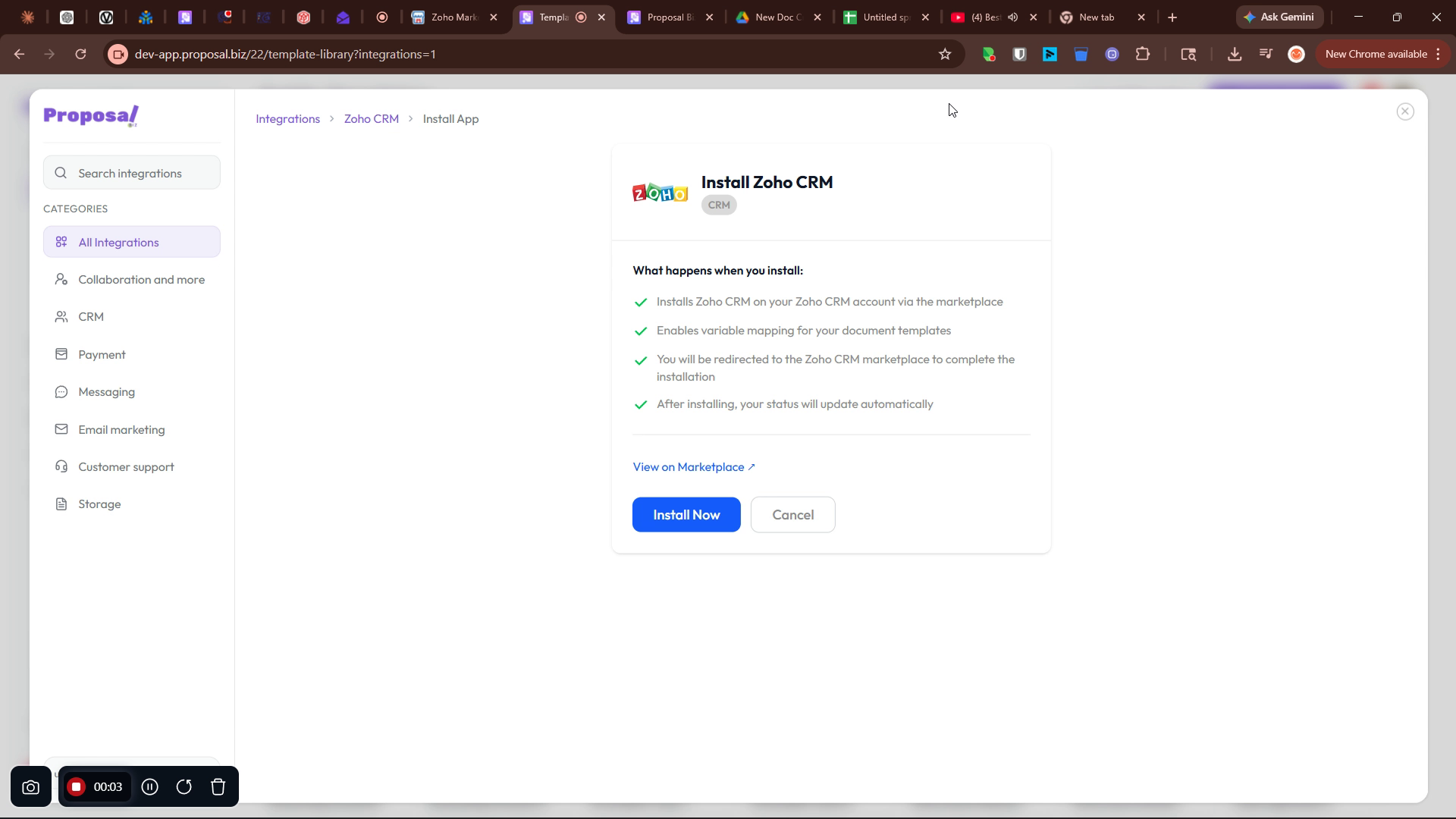
The Zoho CRM install dialog will open
Click Install Now to proceed with adding the extension to your Zoho CRM account
Step 3: Verify Compatibility
After installation, Zoho CRM may display a message about extension compatibility depending on your Zoho CRM edition.
Note If Zoho CRM shows an error indicating that the extension is unsupported for your current CRM edition, you will need to upgrade to a compatible Zoho CRM edition to complete the installation. Contact your Zoho account administrator or Proposal.biz support at [email protected] for guidance on compatible editions.
Part 2b: Configure Variable Mapping for Zoho CRM
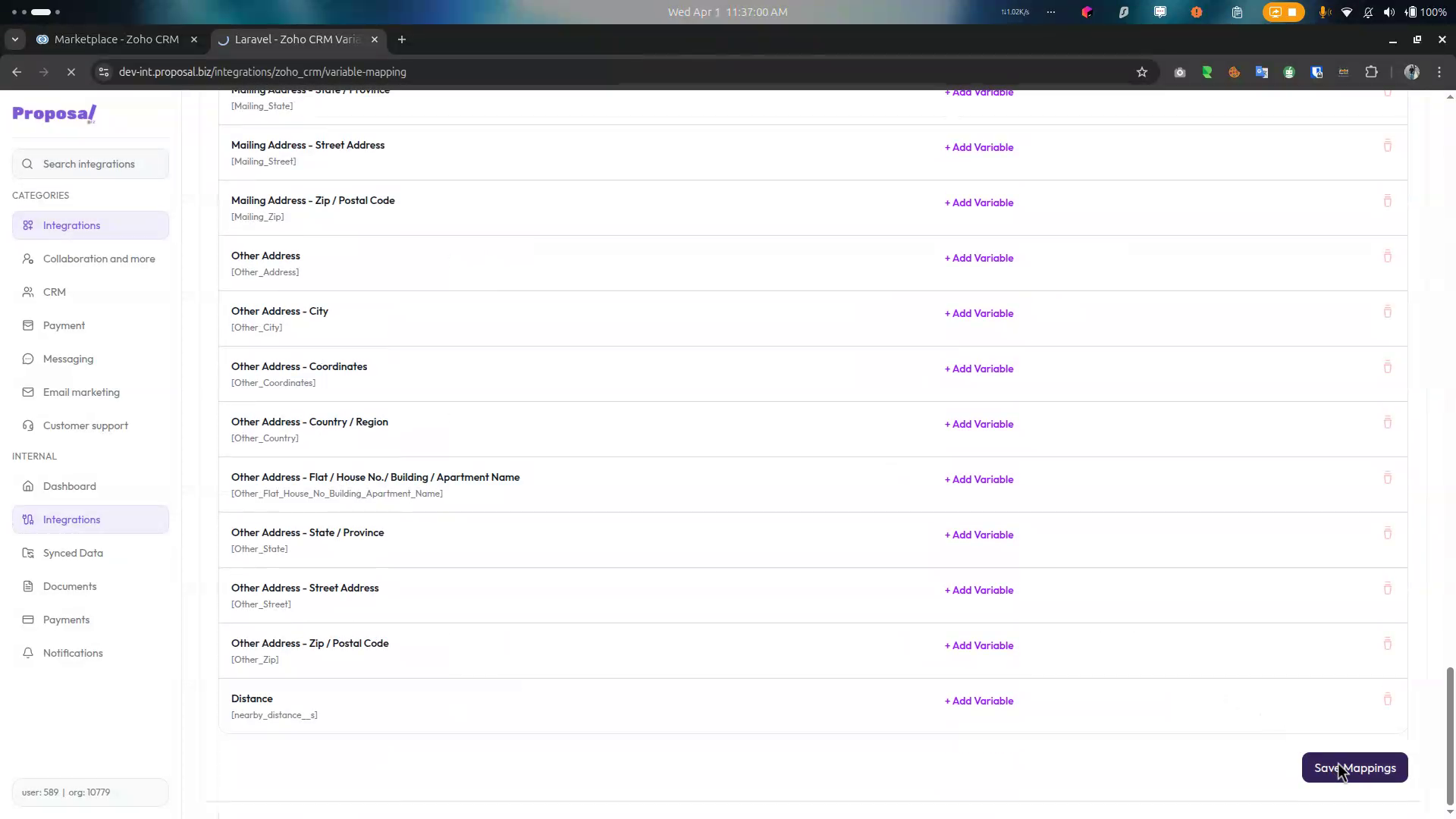
After the app is installed and authorized, a new Variable Mapping option becomes available for Zoho CRM. This lets you map Zoho CRM fields to Proposal.biz variables so your documents are automatically populated with the right data.
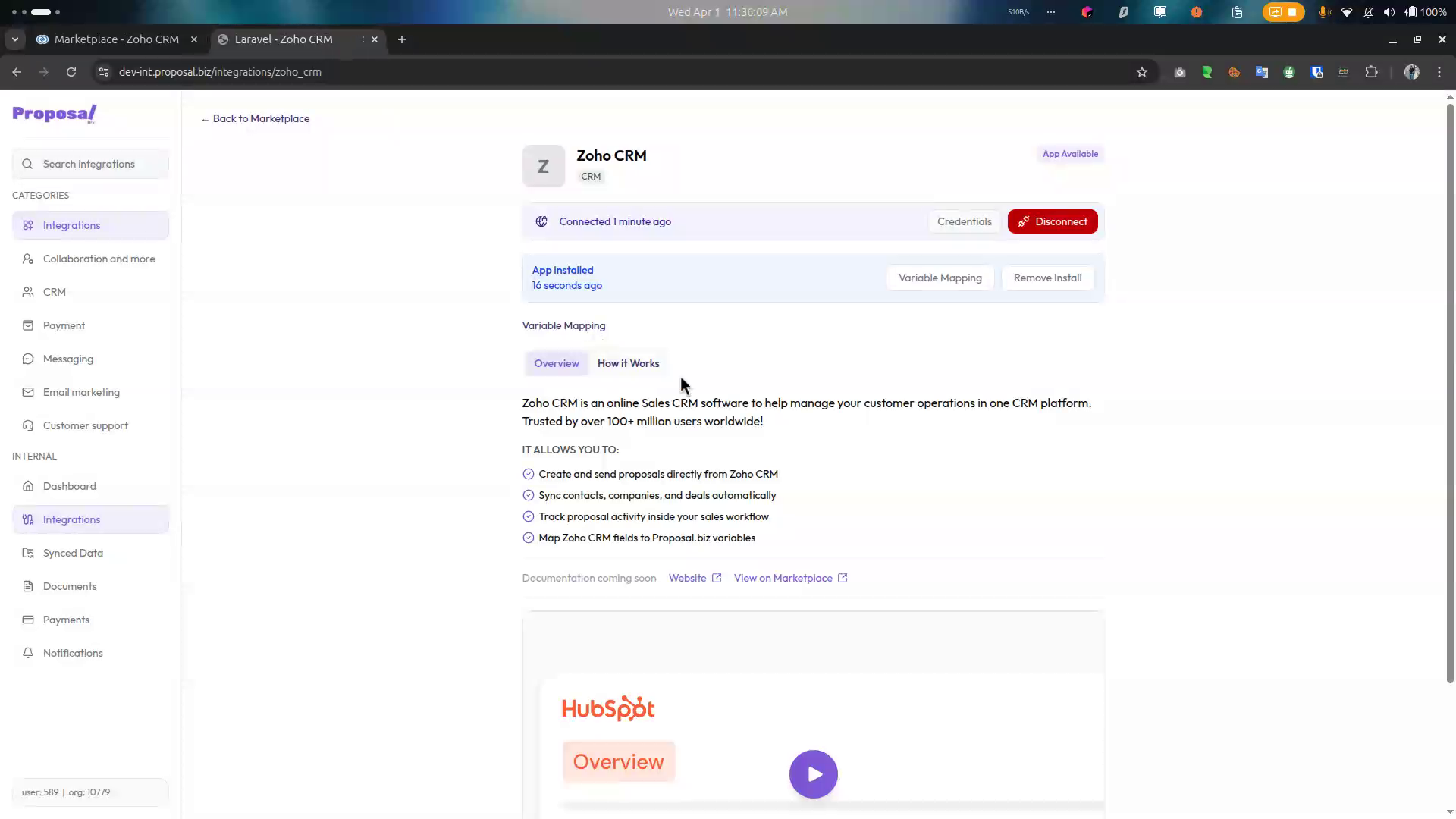
Step 1: Open Variable Mapping
Go to the Zoho CRM integration settings in Proposal.biz
Click Variable Mapping
-
You will see three object types available for mapping:
Deal
Contact
-
Accounts
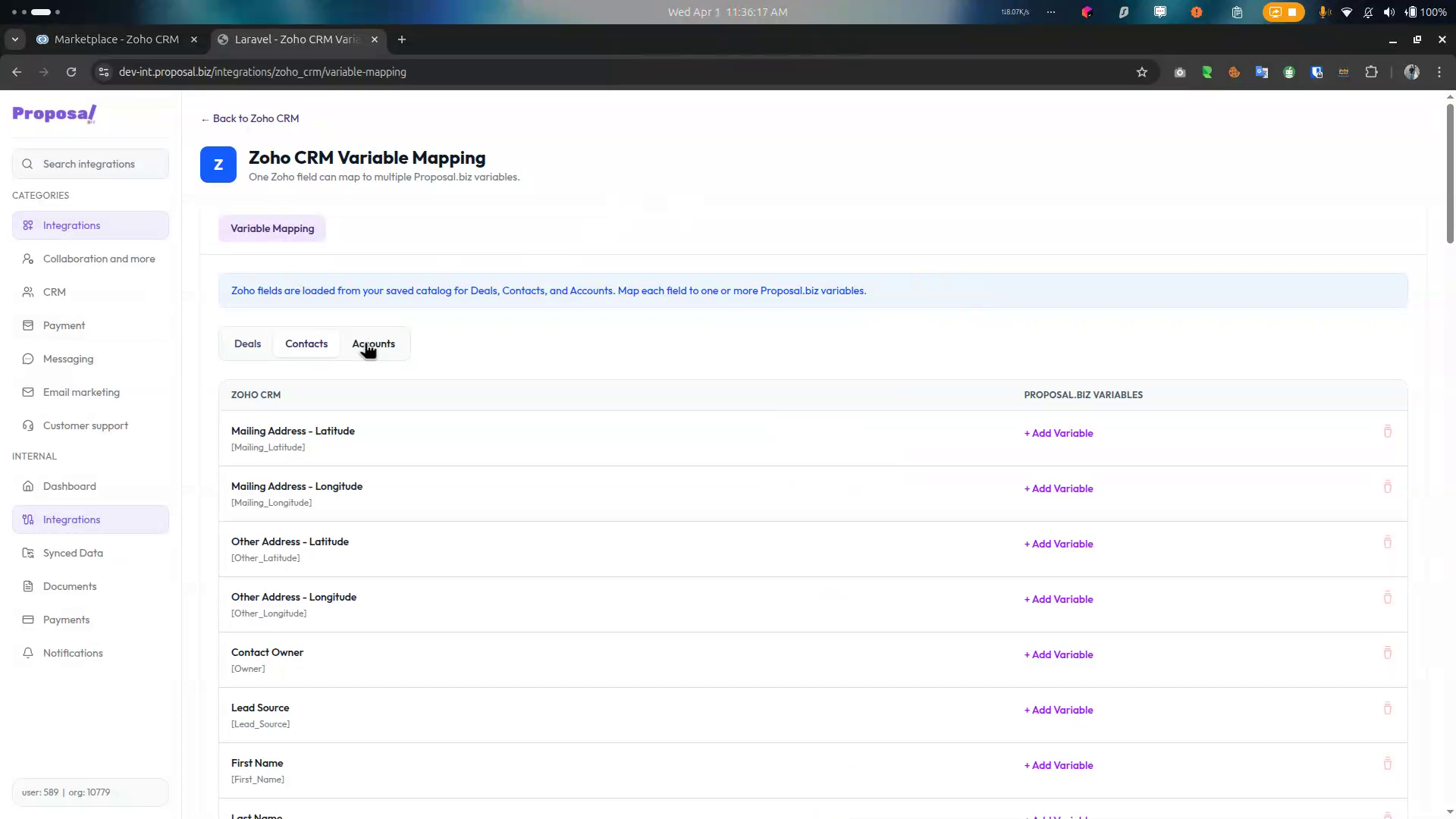
Step 2: Select an Object and Map Fields
Select the object type you want to map: for example Contact
Choose a Zoho CRM field you want to map: for example
Zoho.emailIf a corresponding Proposal.biz variable already exists, select it from the dropdown
-
If a corresponding variable does not exist yet, create a new one:
Click Create Variable
Enter a name: for example
Client EmailSave the new variable
-
Repeat for all fields you want to map — for example:
Zoho.email→Client EmailZoho.first_name→Client First NameZoho.company→Company Name-
And any other fields relevant to your documents
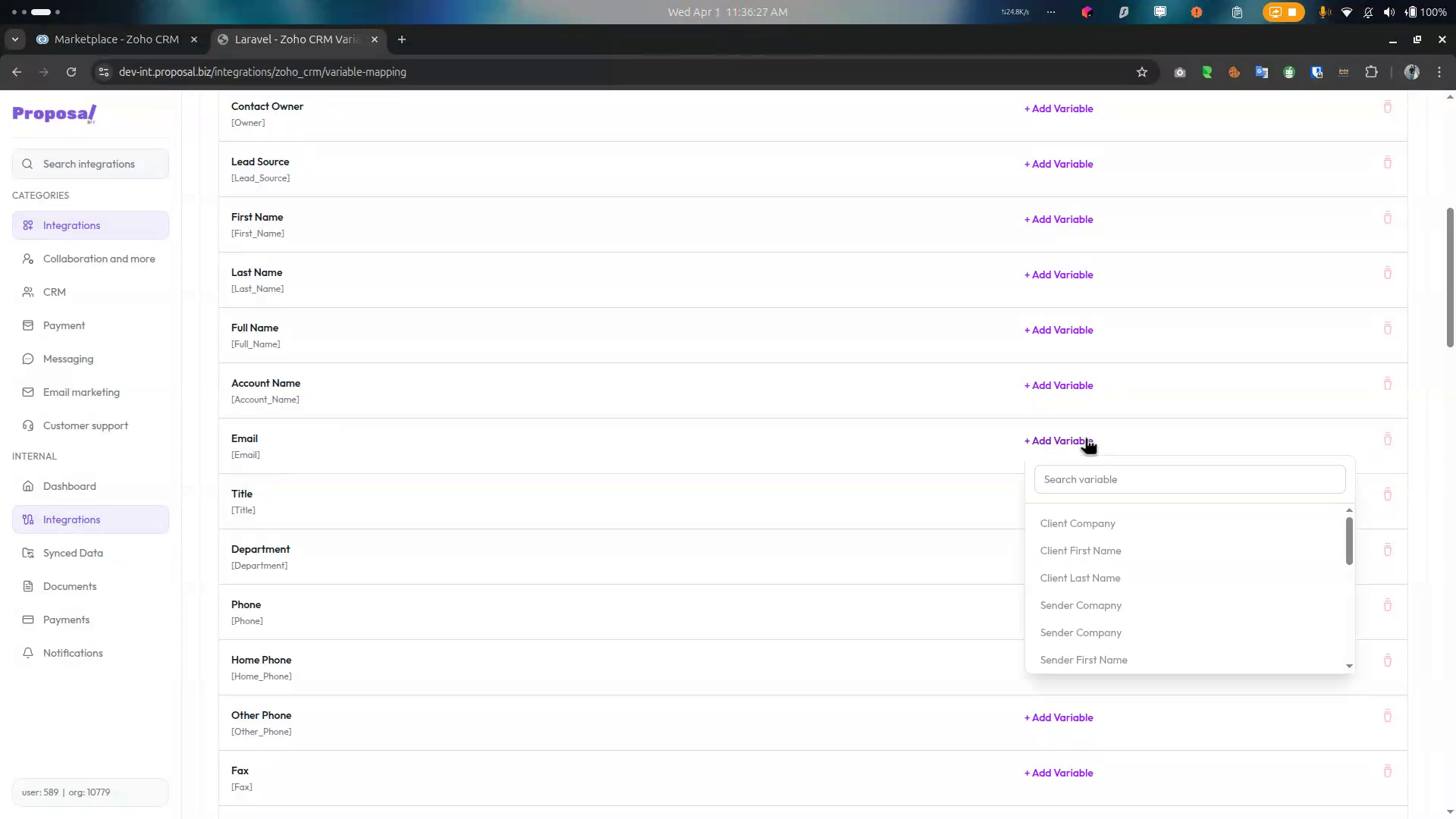
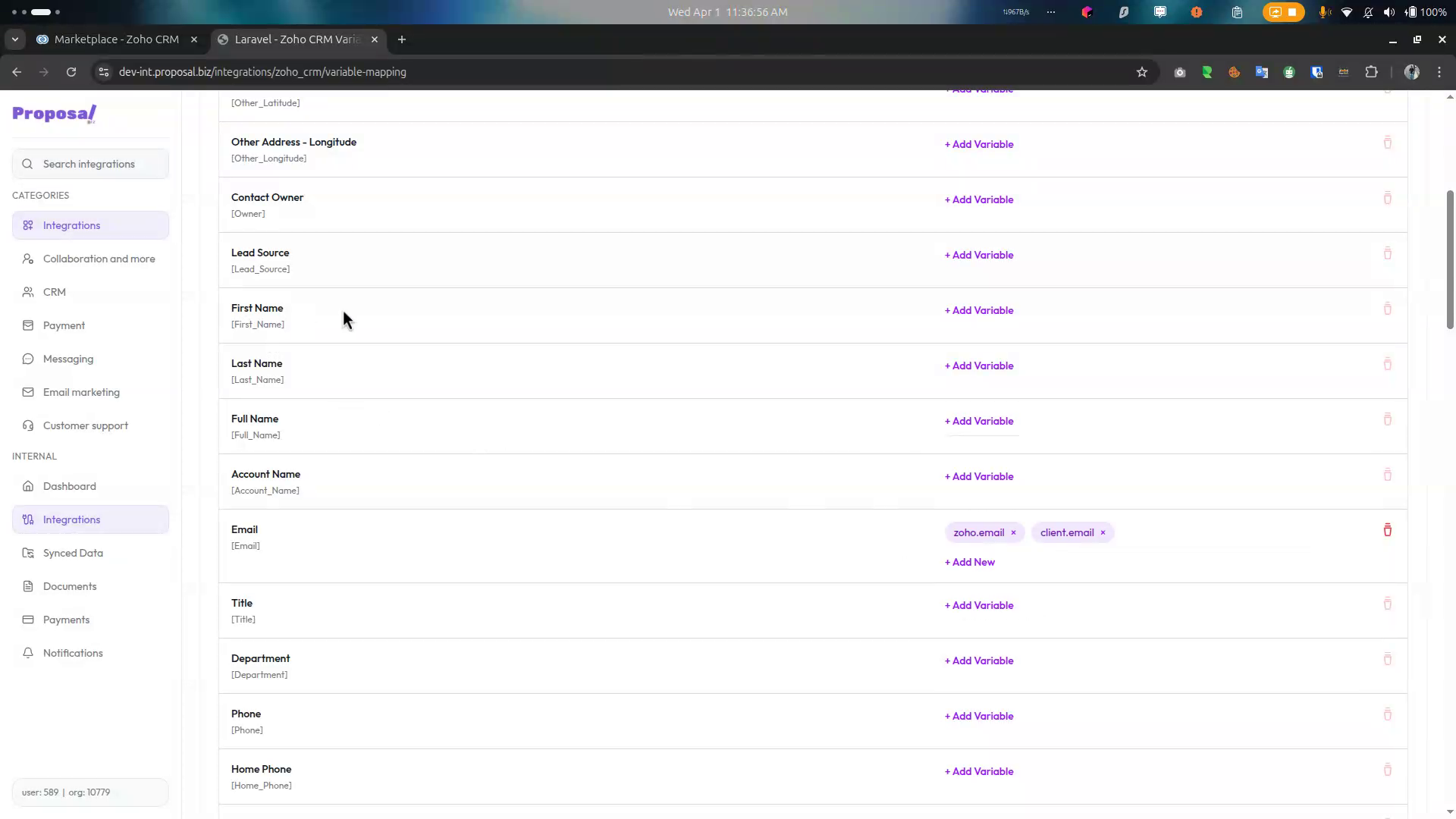
Step 3: Save Your Mapping
After defining and mapping all required variables click Save Mapping
-
Your mappings are now saved and will be used automatically in all future proposals created from Zoho CRM
💡 Pro Tip Map your most commonly used fields first such as contact email, first name, company name, and deal value. These appear in almost every proposal and will save your team the most time. You can always come back and add more mappings later as your document templates evolve.
Part 3: Creating Documents from Zoho CRM
Once the app is installed, you can create Proposal.biz documents directly from inside Zoho CRM.
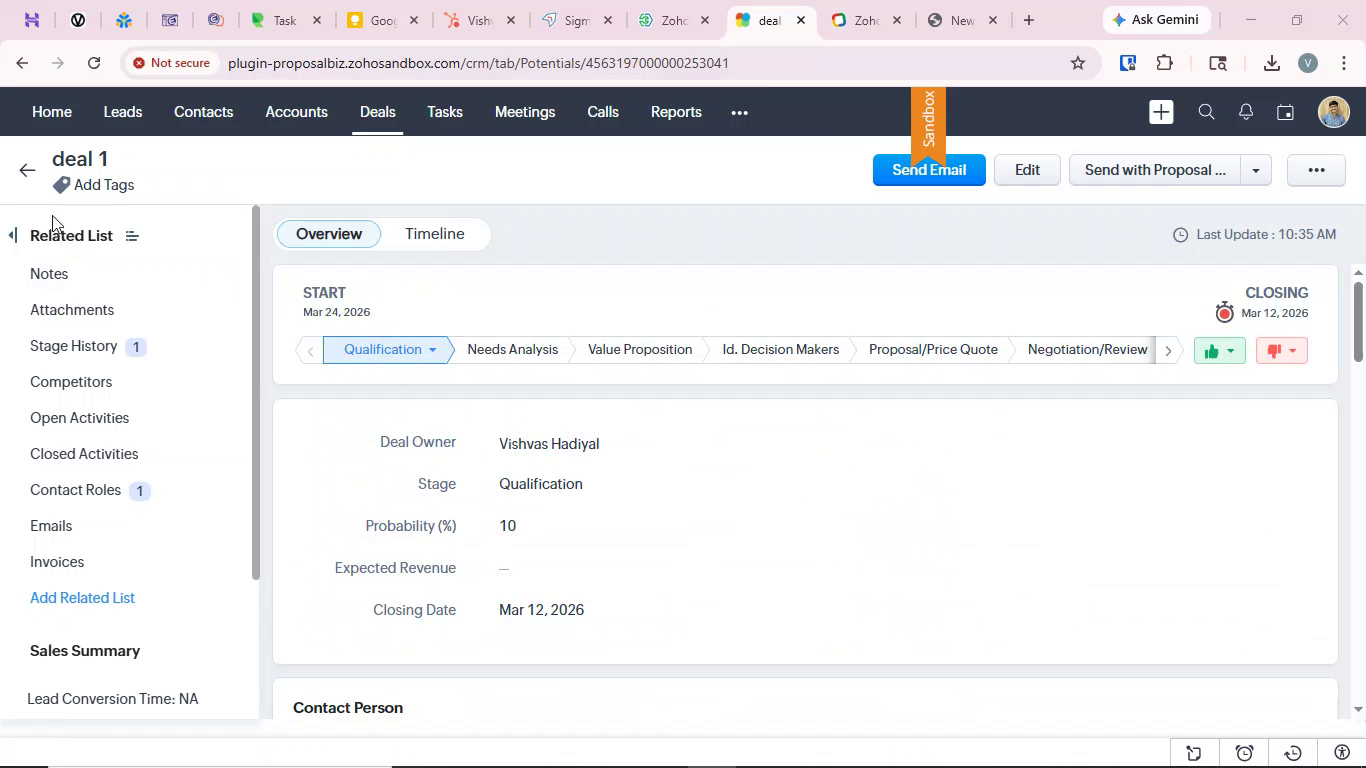
Step 1: Open Send with Proposal.biz
Open any contact, deal, or record in Zoho CRM
Go to the Timeline tab
-
Click the Send with Proposal.biz button to open the document creation popup
Step 2: Choose How to Create Your Document
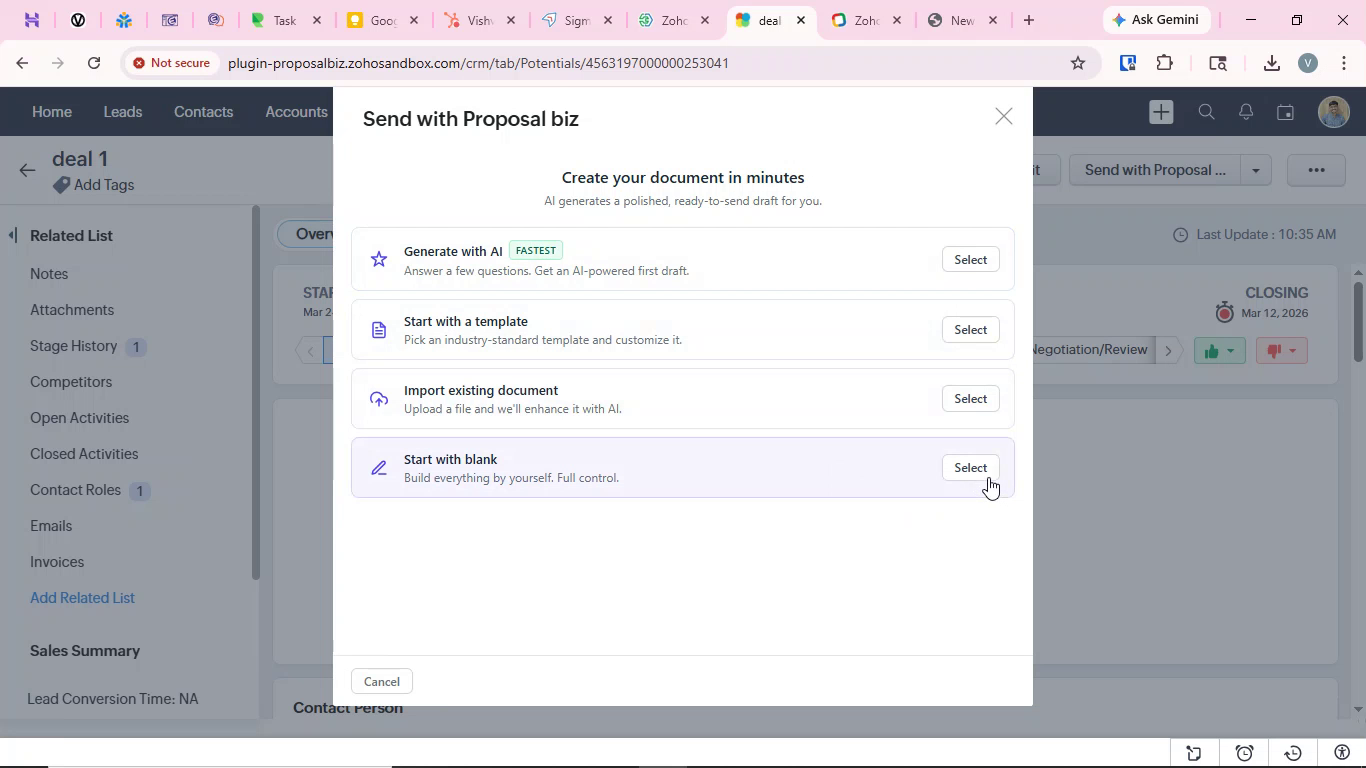
The popup will show you four ways to create a document, the same options available on the Proposal.biz dashboard:
Generate with AI — Describe what you need and let AI build the document for you
Start with a template — Pick a template from the library
Import document — Upload an existing file
Start with blank — Open a clean canvas
Select your preferred method to proceed.
Step 3: Configure Recipients
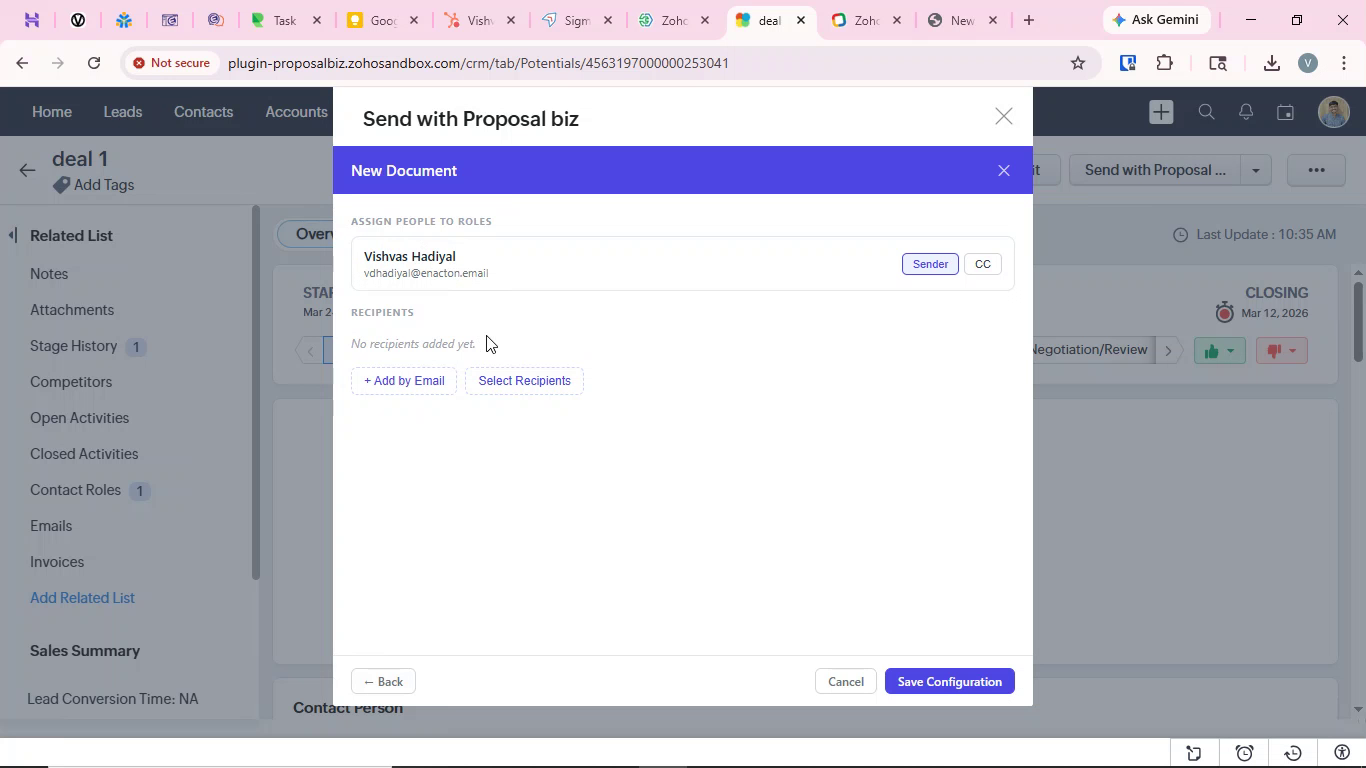
Click Select Recipients
Choose the relevant Zoho CRM contacts by checking the boxes next to their names
Click Add Selected to add them as recipients
-
Click Save Configuration to store your recipient settings
Step 4: Edit in Proposal.biz
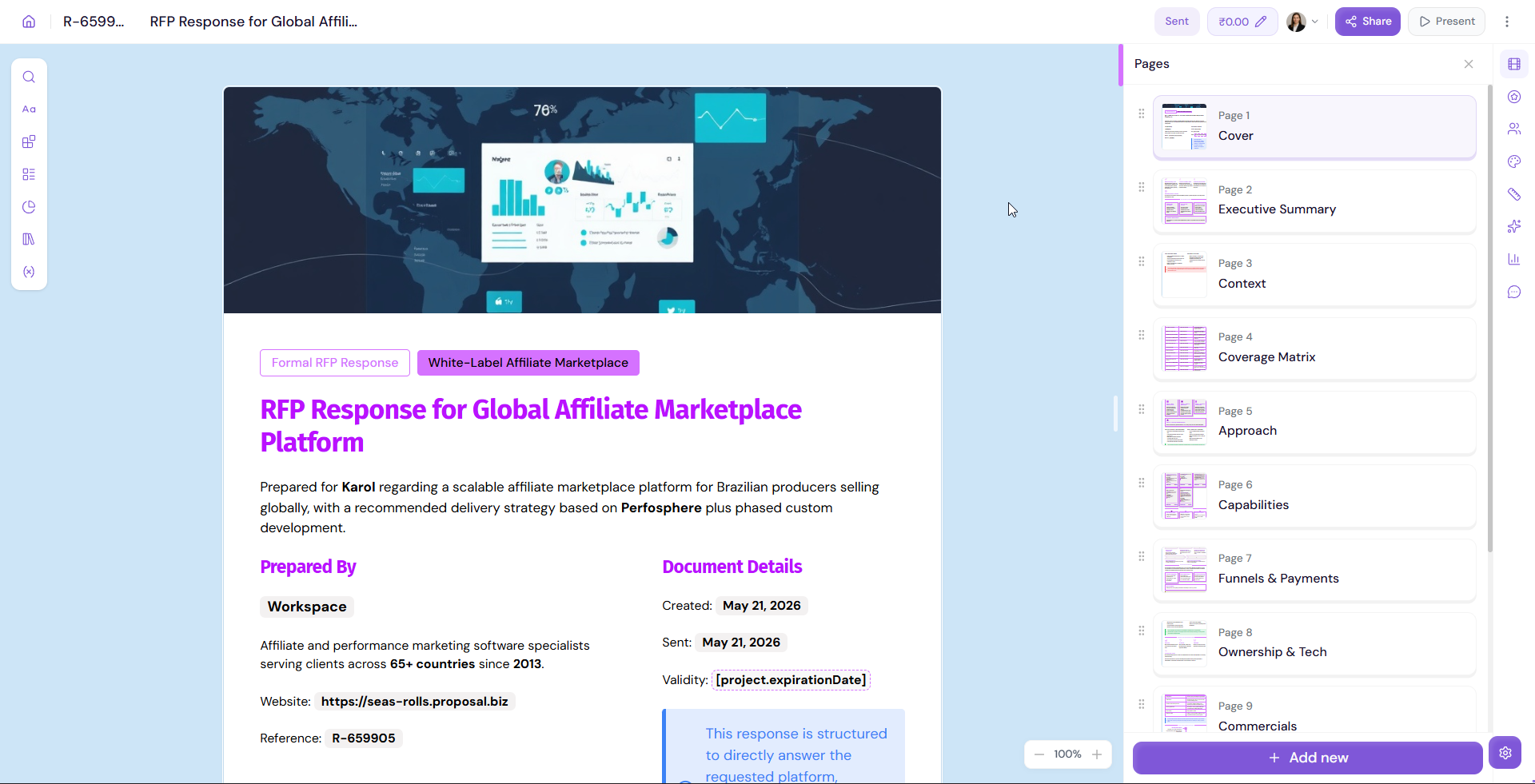
After saving the configuration, you will be redirected to the Proposal.biz editor where you can:
Edit and finalize your document content
Use the drag-and-drop editor and AI assistant
Customize the theme and layout
-
Share the document when ready
💡 Pro Tip Use the Start with a template option when creating documents from Zoho CRM. Combined with your mapped CRM variables, this lets you generate a fully personalized, branded document in seconds without any manual data entry.
Part 4: Tracking Documents from Zoho CRM
Once your document is shared, you can track its status directly from inside Zoho CRM without needing to switch to Proposal.biz.
Tracking Document Status in Zoho CRM
After sharing a document, its current status is visible on the contact or deal record in Zoho CRM. You can see at a glance whether a document is:
Draft — Document is still being worked on
Sent — Document has been shared with the recipient
Finished — Document has been completed by the recipient
Expired — Document has passed its expiry date
This lets your sales team stay informed about proposal progress without leaving Zoho CRM.
💡 Pro Tip Use document status tracking in Zoho CRM to time your follow-ups. When you see a document move to Sent but stays unopened, follow up with a gentle reminder. When it shows as Finished, move quickly to close the deal.
Full Analytics in Proposal.biz
For deeper engagement insights beyond status tracking, go to the document's analytics in Proposal.biz. Here you can see a full breakdown of how your recipient is interacting with the document:
Which page the recipient is currently on — See exactly where they are in the document
Time spent on each page — Understand which sections hold their attention and which are being skipped
Total session duration — How long the recipient has been viewing
Completion rate — Whether the recipient has viewed the entire document
CTA clicks — Whether the recipient clicked any call-to-action elements
-
Device and location — What device and browser the recipient is using, and where they are viewing from
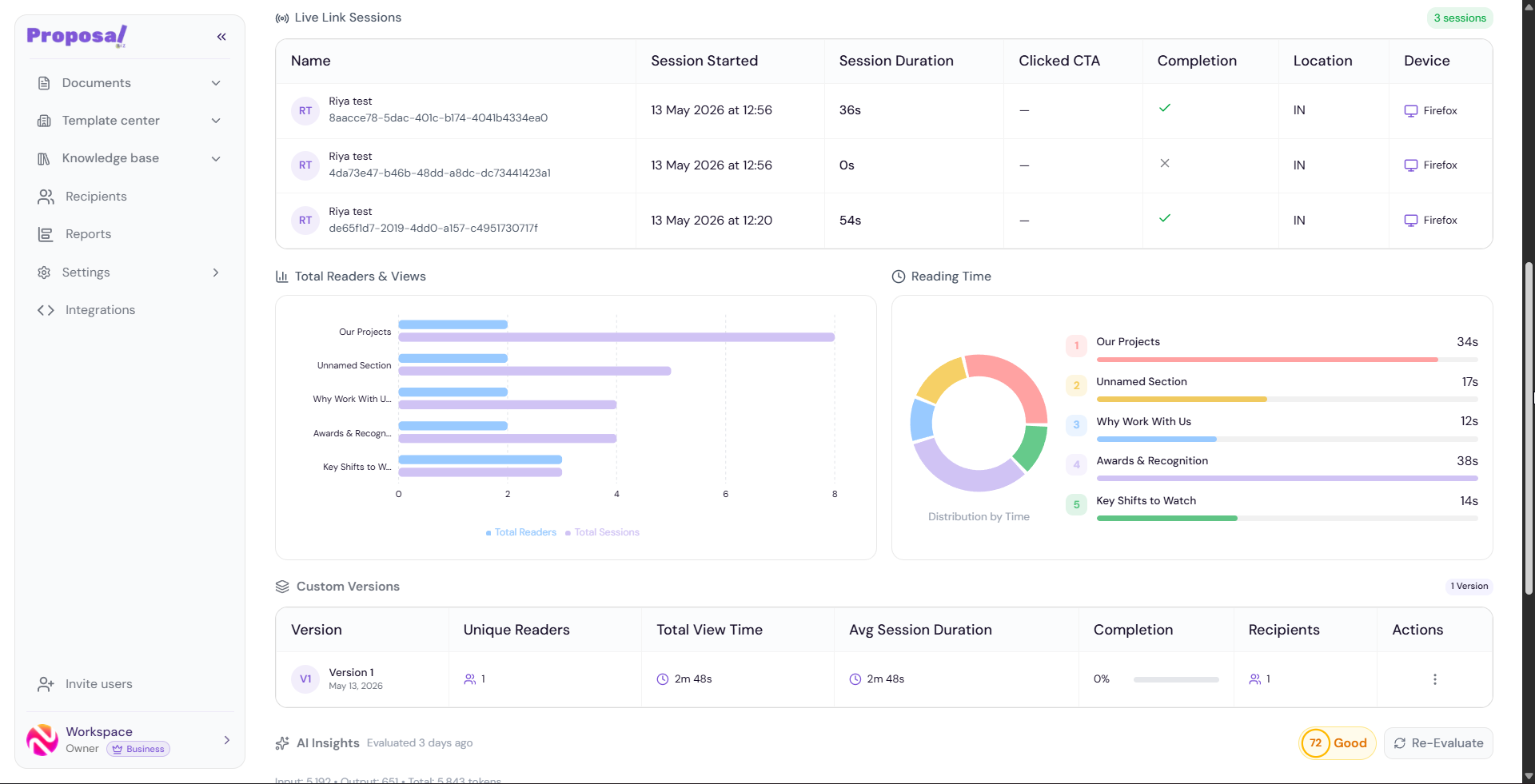
💡 Pro Tip Pay close attention to the time spent on each page data. If a recipient spends a long time on your pricing page, they are likely evaluating your offer seriously and this is the ideal moment to follow up. If they skip a section entirely, consider whether that content needs to be reworked or removed for future proposals.